One of the many announcements at Ignite (somewhat away from the AI hype) is the long-awaited B2B support for Global Secure Access. It combines Entra B2B, such as cross-tenant access policies, with the features of GSA, enabling an excellent user experience while also providing a very high level of security.
Use cases for B2B access
When planning the replacement of legacy VPNs, the issue repeatedly arises that the VPN is not only used by employees with managed devices, but also provides access for service providers and consultants, for example.
Admittedly, it has always been somewhat problematic to run multiple VPN clients on the same device, but the requirement to use an Entra-joined device in this tenant significantly increases the degree of difficulty.
B2B support for GSA now offers the option of combining other Entra features such as identity, authentication, and signals such as device compliance from the home tenant. For example, an SAP consultant who wants to access a system in the data center can “bring along” the existing phishing-resistant login with Windows Hello and the device compliance of their client from the home tenant.
Other complex scenarios involving multiple tenants can now also be resolved much more easily. Examples include tenants that only contain Azure resources, admin access, or access to partner companies.
💡My personal favorite use case is accessing my lab, because—like many consultants—I run an extensive lab that contains various VMs, including an Active Directory. With B2B, I can now switch securely and easily from my production client to the lab tenant and access the environment there.
Overview and User Experience
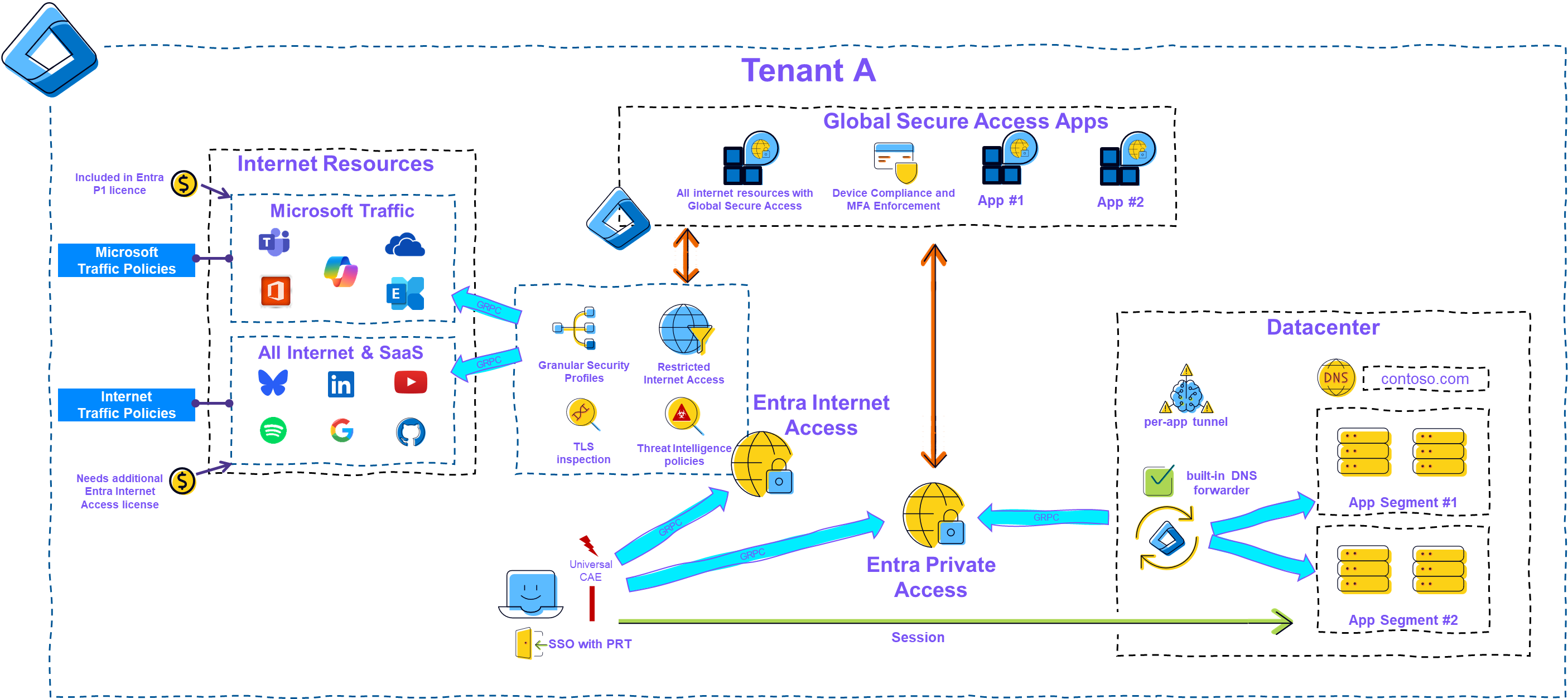
Depending on the configuration, a Global Secure Access user is connected to the Microsoft Traffic, Internet Traffic, and Private Traffic channels in their home tenant.
 |
|---|
| Picture 1: Global Secure Access Overview |
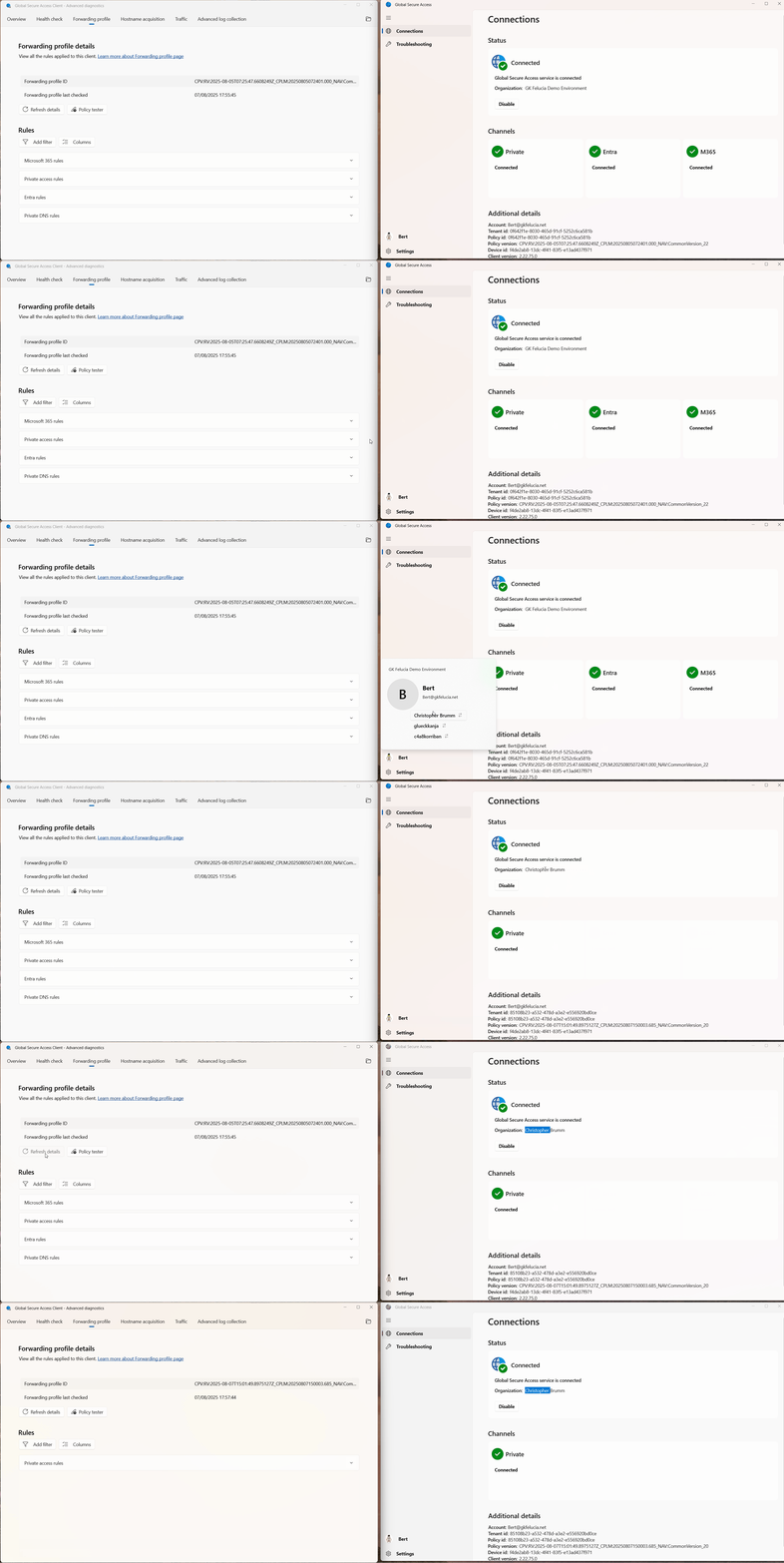
After successfully setting up B2B access, the user can then switch tenants in their client:
 |
|---|
| Picture 2: Global Secure Access Tenant Switch |
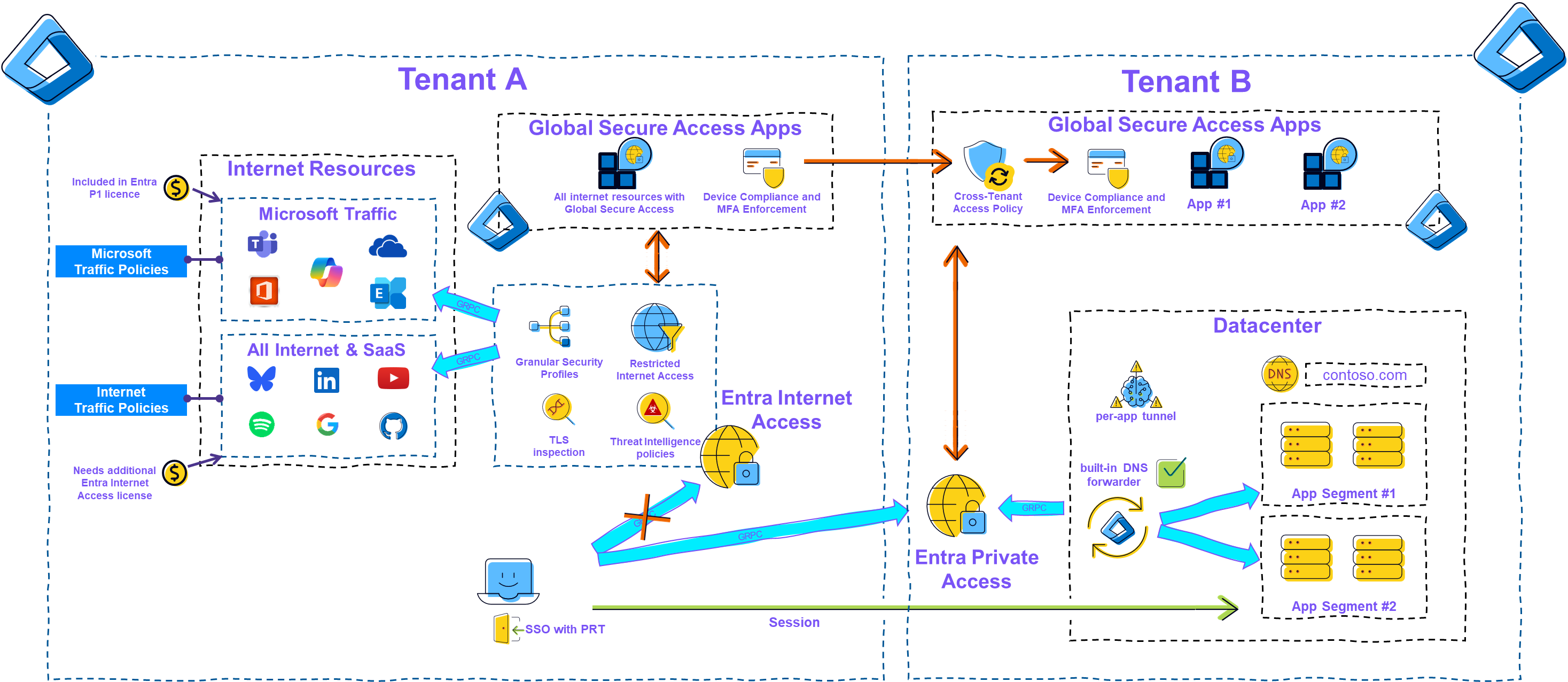
This switch then connects the client to the channel for private traffic in the remote resource tenant and disconnects the other two channels. Cross-tenant access policies enable a very high level of security and usability to be achieved.
 |
|---|
| Picture 3: Global Secure Access B2B Overview |
For this blog, I have decided to first provide a rough overview of the necessary steps and then use an example scenario to explain in more detail the possibilities that arise in combination with the many other Entra features.
Configuration Overview
A few configurations are necessary to use this feature. Here is an overview of the steps in the order I recommend:
 |
|---|
| Picture 4: B2B Configuration Overview |
Client Configuration
By default, users cannot switch to another tenant with their client. To enable this, the following registry key must be set under HKEY_LOCAL_MACHINE\SOFTWARE\Microsoft\Global Secure Access Client:
| RegKey | explanation |
|---|---|
| GuestAccessEnabled | Enables the option to use the B2B feature. |
If the option is enabled, all tenants in which the user has a guest account are displayed (even if no GSA is set up there).
Cross-tenant Access + Conditional Access
Even without GSA, conditional access is already one of the most complex topics in Entra. Since most environments already have an existing CA implementation and it is very important to have an overall concept here, I will only briefly touch on the most important points that need to be considered:
When accessing data center resources, I believe MFA and device compliance are also appropriate for guests. To enable this, cross-tenant settings need to be configured, and I would like to recommend Sander’s blog series on this topic:
Cross-tenant Access Settings Archives - The things that are better left unspoken
Unfortunately, there is no app that maps all Private Access apps—so the individual EPA apps or All Cloud apps remain as options.
Access relevant to CA is performed by the GSA Agent, which is a desktop app.
It is possible and, in some cases, advisable to explicitly use the home tenant in the scoping of conditional access policies.
💡Last year, I wrote a blog post about conditional access and global secure access, where you can find lots of information about the special features of Entra Private Access.
B2B invitation and redemption
To get the guest into our tenant (if they are not already there), the following options are available:
- The admin sends an invitation (and then grants access directly)
- There is a cross-tenant sync
- The invitation is sent as part of an access package
Forwarding Profile + App Assignment
In most scenarios where guests need to access data center resources via EPA, the requirement for high granularity is likely to be significantly higher than for employees. However, since we still cannot have any overlaps (with the exception of Quick Access) for the network segments in the EPA apps, it makes sense to plan carefully here in order to avoid modifications (possibly with downtime) or overprivilege.
For guest assignment, I consider the use of access packages (or at least access reviews) to be very useful in order to support approvals and reviews. Another reason for using access packages is the fact that guests need an assignment forwarding profile in addition to the apps, and group nesting is not supported here.
💡Assigning all guests (of a tenant) to the forwarding profile is not a good idea. Although the guests do not have access rights, they can view all app segments configured in the tenant on their client.
Example scenario
In my example, I use quite a few Entra functions. I know that not everyone needs such a “big solution,” but I would like to highlight a few ideas in this example. It’s best to pick out the parts that you think are useful.
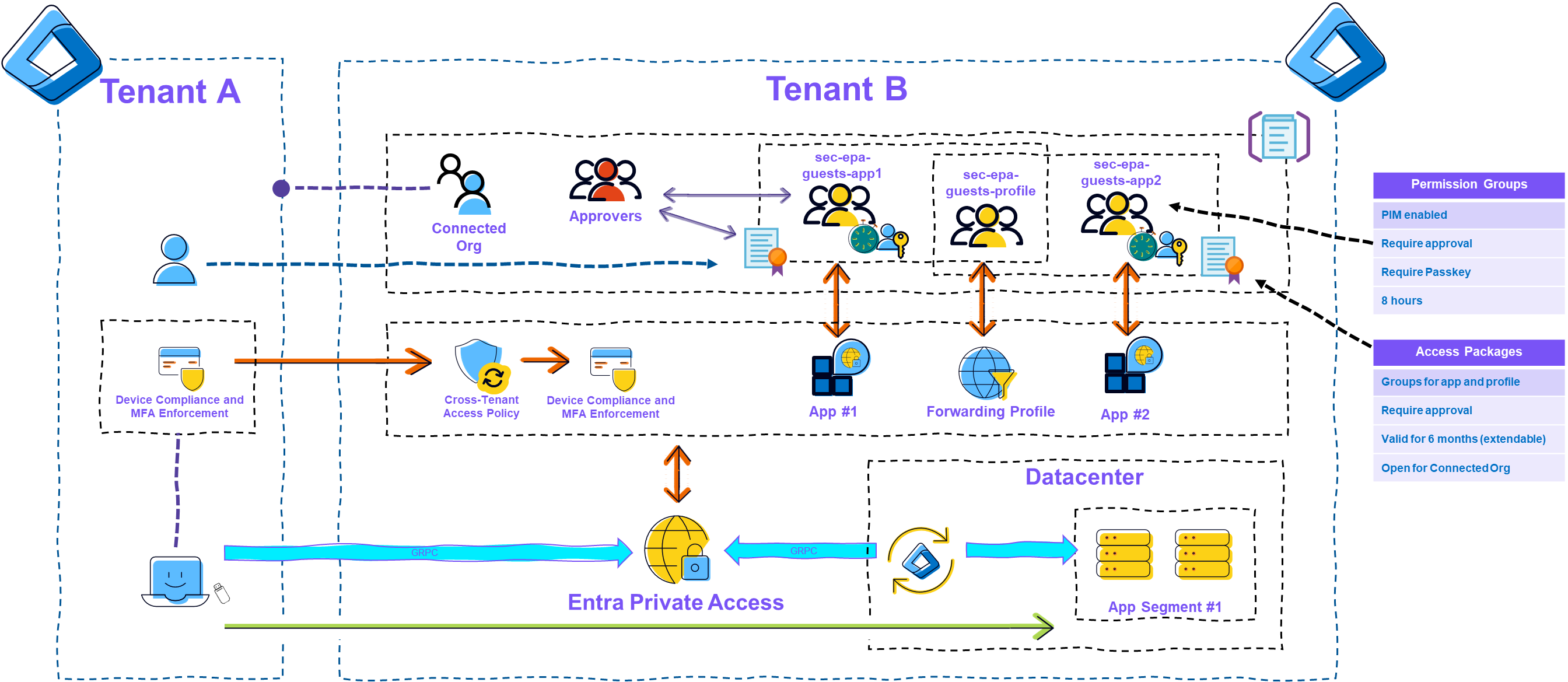
In this scenario, a service provider is to be given access to several application servers, as it provides support for maintenance and troubleshooting. Access is sporadic, and the service provider has a relatively large group of people who may need access, as troubleshooting can also take place outside of typical working hours. A high level of security and control is to be enforced for access.
 |
|---|
| Picture 5: GSA B2B Example |
- Tenant A is added to ID Governance as a connected organization and configured as trusted for MFA and device compliance in the cross-tenant access policy.
- A new group (sec-epa-guests-profile) is created and stored in the Traffic Forwarding Profile for Private Access.
- In addition, a new group (sec-epa-guests-appX) is created for each Private Access Enterprise App and enabled for PIM. Activation of the group is limited to 8 hours and requires approval and authentication via passkey.
- In ID Governance, a new catalog (EPA Guest Access) is created in which a new access package is then created for each Private Access Enterprise App. This package contains the groups for the app and for the forwarding profile, is limited to 6 months (with extension), and requires approval.
- Conditional access enforces MFA and device compliance for access.
User Experience (Video)
In the first video the guest is requesting an Access Package to gain access to resource and in the second video we see the group activation with PIM which is needed for accessing:
Limitations
- No support for continuous access evaluation (this is a general limitation of B2B)
- High visibility for the partner, as the forwarding profile is the same for all users
- Loss of Entra Internet Access when switching to another tenant
- There is a limitation that prevents the use of passwordless sign-in (PSI) on the authenticator app.
Attribution and References
Overview of B2B guest access with Global Secure Access (preview)