🆕 This is the updated version of my blog about Entra Private Access for Active Directory for Domain Controllers. You can find the old version → here ←. New features include the central admin UI and logging!
Intro
In many environments - often for historical reasons - there is no strict separation of client and server networks. And if there is a firewall between the networks, the rule sets often allow direct communication with the domain controllers in the environment. Although a conversion makes a lot of sense, it is often not possible quickly, because various services like GPOs or Kerberos rely on this communication and a client modernization project takes time and effort.
This means for all clients in the local network:
- Any client can attack Active Directory, including unmanaged or even known malicious ones.
- Any user can log on to all services without strong authentication and without managed clients.
Accordingly, in recent years I have often heard justified calls for “OnPrem MFA”, for example.
This is where Microsoft Entra Private Access for Active Directory domain controllers (From here on, I will refer to it as EPA4DC.) comes in and addresses a very important part of this requirement with the Kerberos service by installing the Private Access Sensor on the domain controllers. This sensor is (as of December 2025 in the preview) able to control the retrieval of Kerberos tickets based on the combination of the following criteria
- Which user is requesting?
- Which service principal name is requested?
- From which IP address is he requesting?
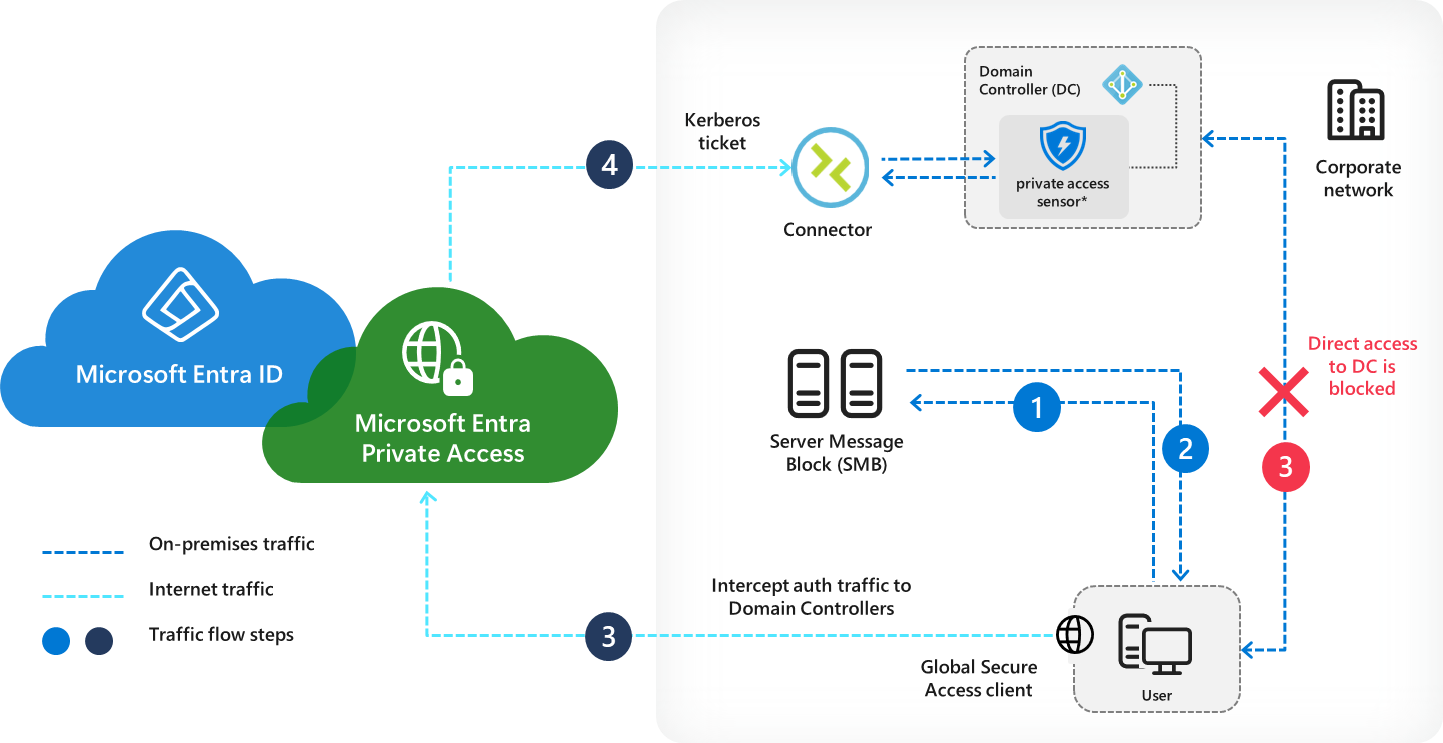 |
|---|
| Picture 1: Overview from Microsoft |
What does this look like for the user?
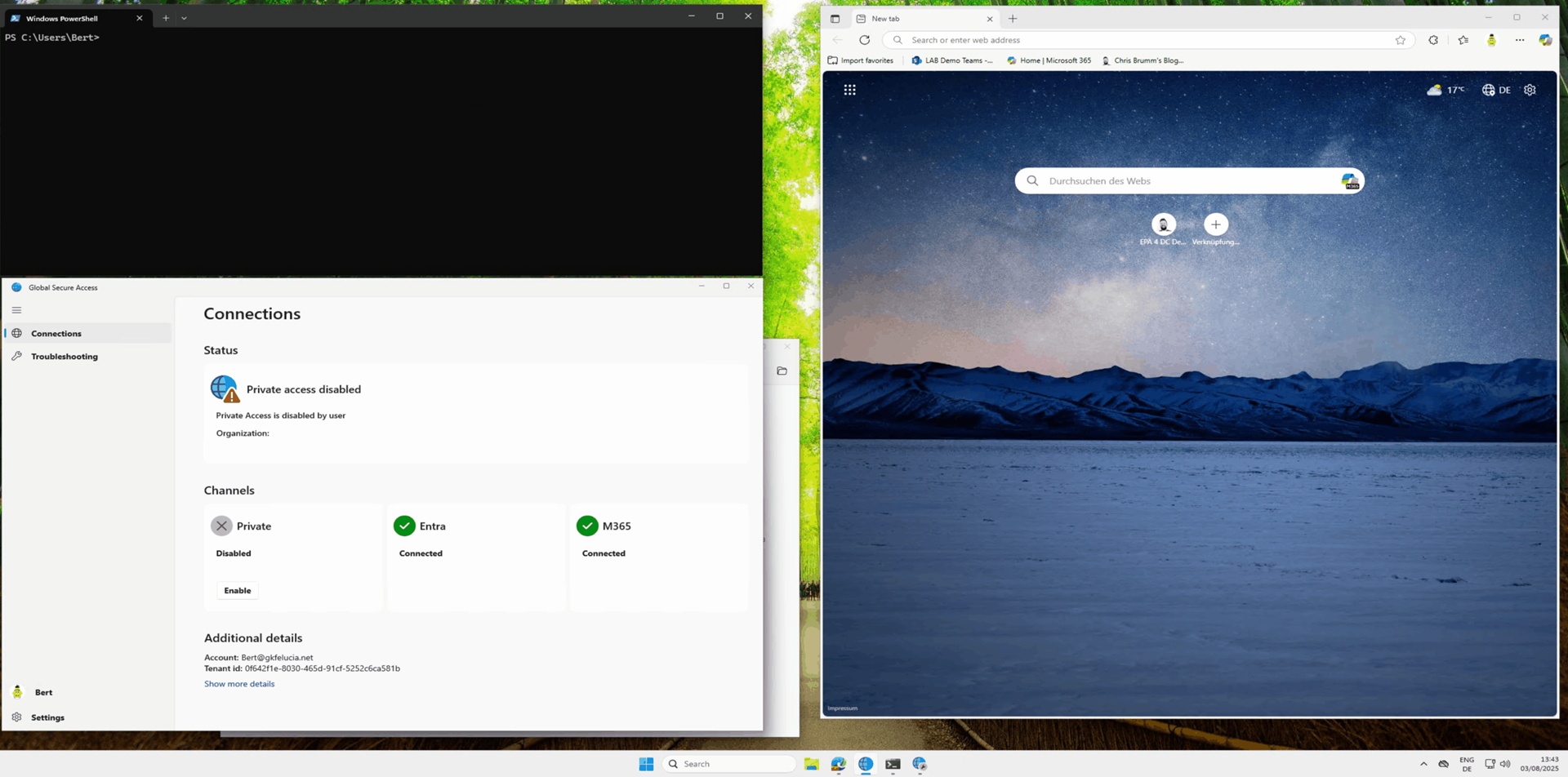
Let’s start with how this ideally affects the user. In the following video you can see how the user Bert tries to access a web server in the local network from his client. As the web server requires a Kerberos login, EPA4DC is used and we can see that it is only possible to retrieve a ticket (TGS) if the GSA client is switched on.
 |
|---|
| Picture 2: Demo |
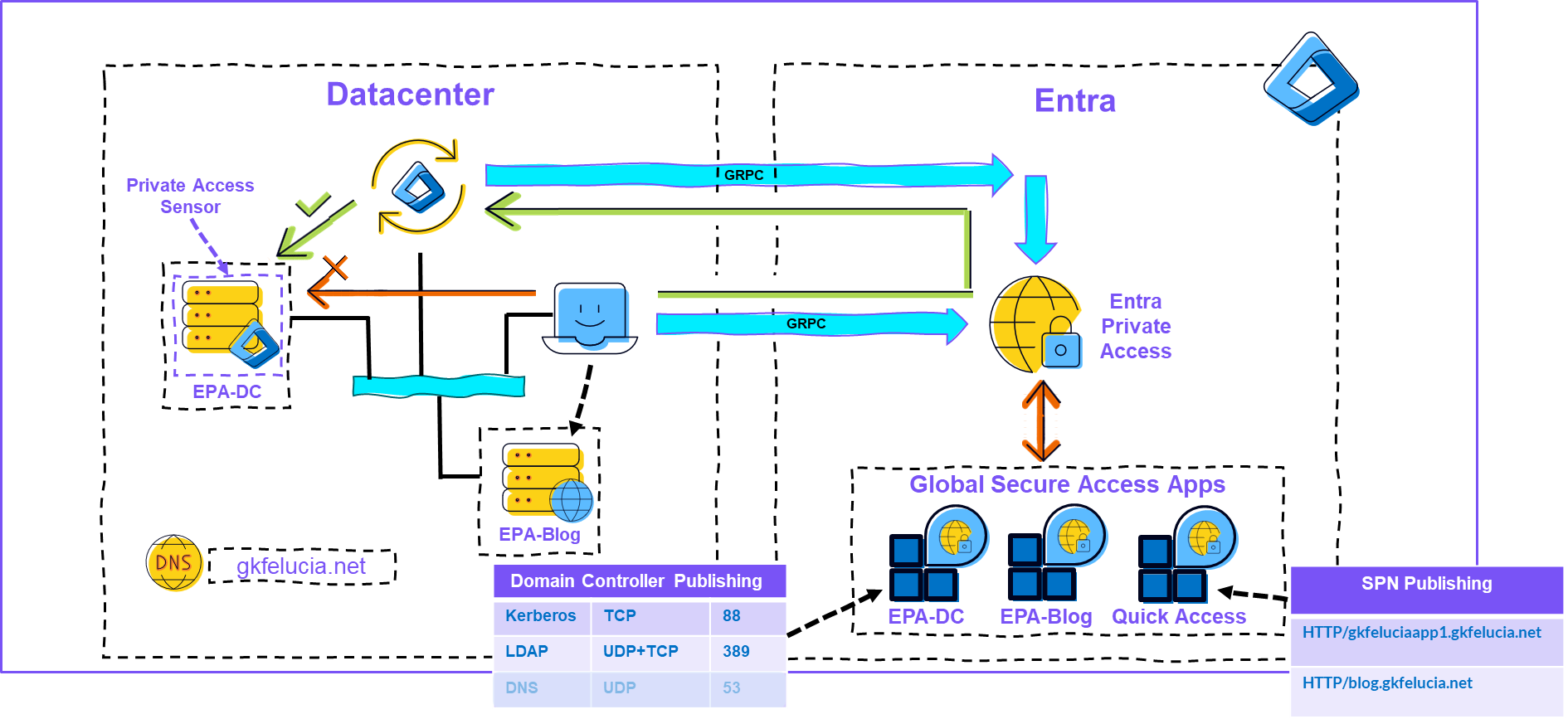
For this to be possible, all domain controllers involved must be published via Entra Private Access (from now referred as EPA), the Private Access Sensor must be installed on them and the Service Principal Names (SPNs) involved must be stored in the Quick Access App:
 |
|---|
| Picture 3: My test environment |
Installation
Let’s go through the necessary steps for a test setup (instructions for production environments are given below). I am assuming that you already have EPA running.
Step 1: Installing the Private Access Sensor on the DCs
Overall quite simple and well documented. Don’t forget to set Edge as default browser since an authentication at Entra ID is necessary to register the sensor.
‼️Unfortunately, this requires a login with an admin account. It is not yet documented which role is required as a minimum. In many environments it will unfortunately come down to a login from the DC without phishing-resistant MFA and device compliance. In my opinion, there is an urgent need for action for the installation of the agents and an alignment with e.g. the MDI procedure would be desirable.
Step 2: Configuration of an SPN
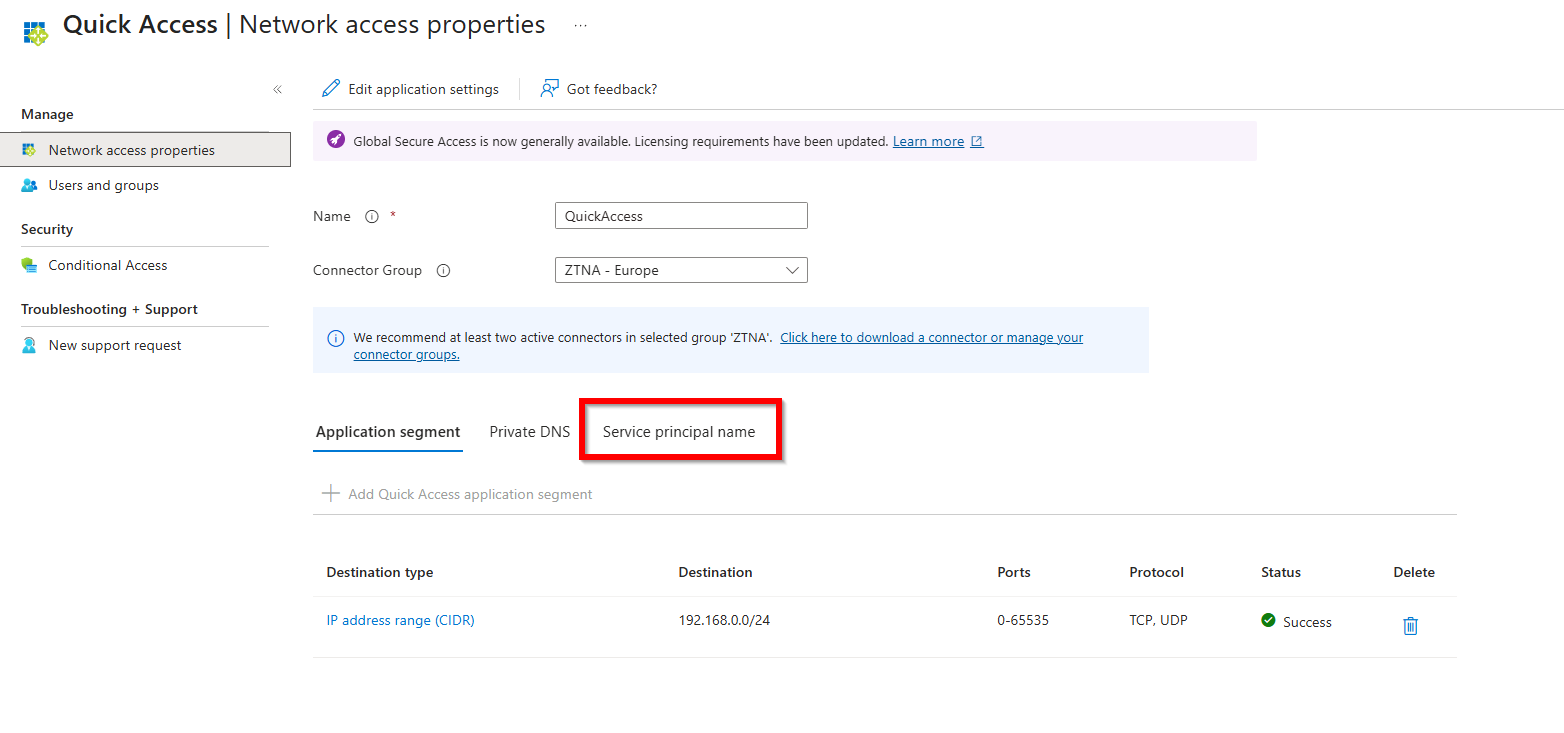
SPNs can only be configured in a separate section in the Quick Access app.
 |
|---|
| Picture 4: Service Principals at Quick Access |
Here you can add and edit new SPNs:
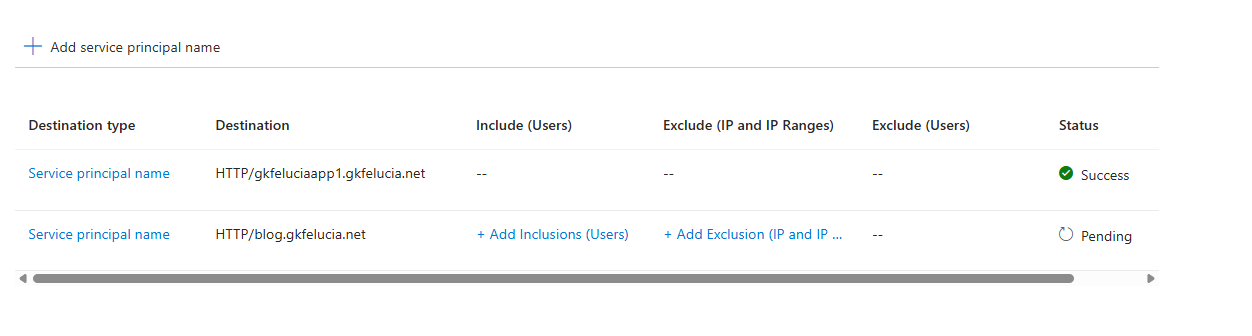 |
|---|
| Picture 5: Overview Service Principals |
Inclusions and exclusions can then be activated for an SPN.
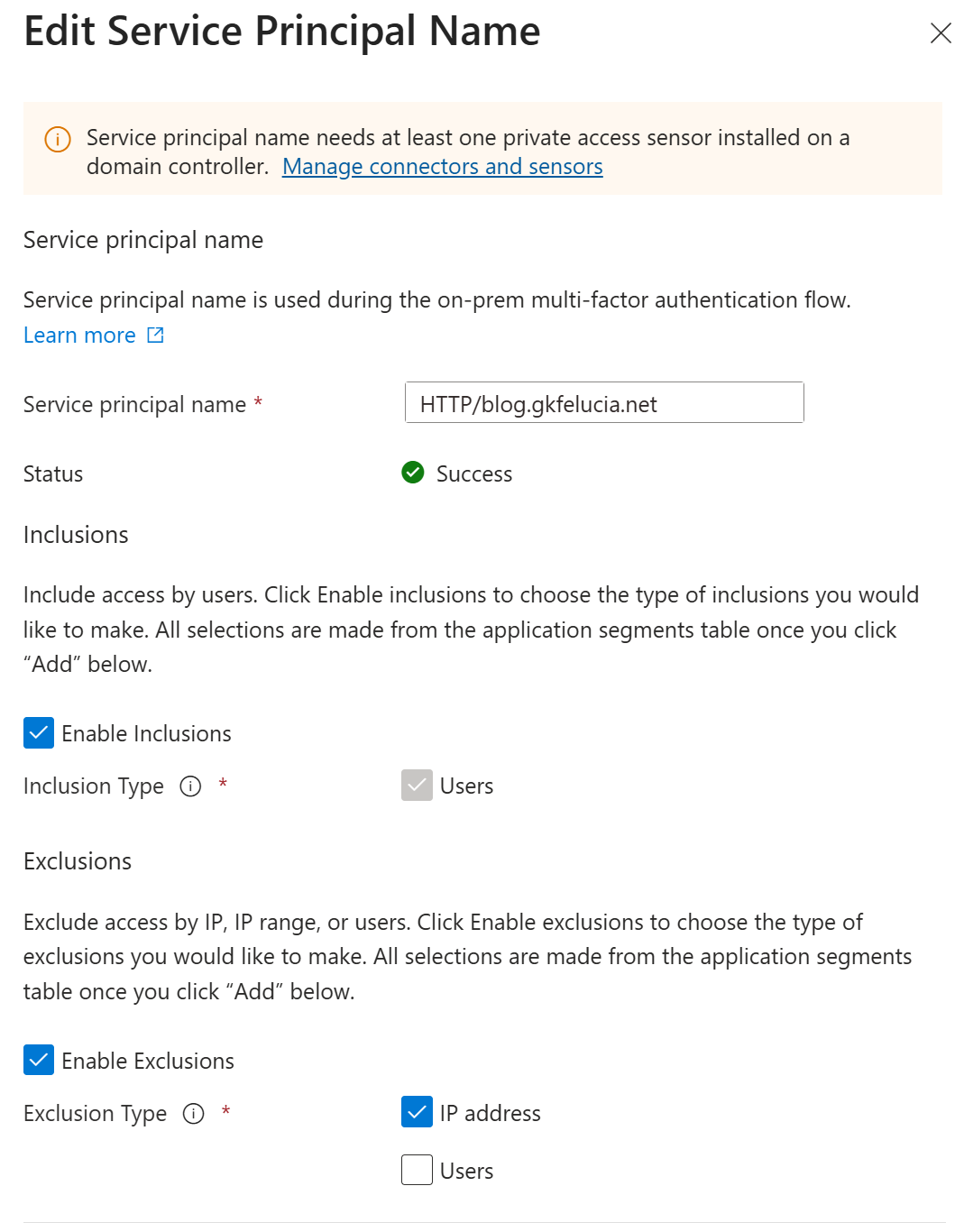 |
|---|
| Picture 6: Addition of a new Service Principal |
Note: Inclusions and exclusions cannot be activated for users at the same time.
In the second step, the inclusions and exclusions can then be added:
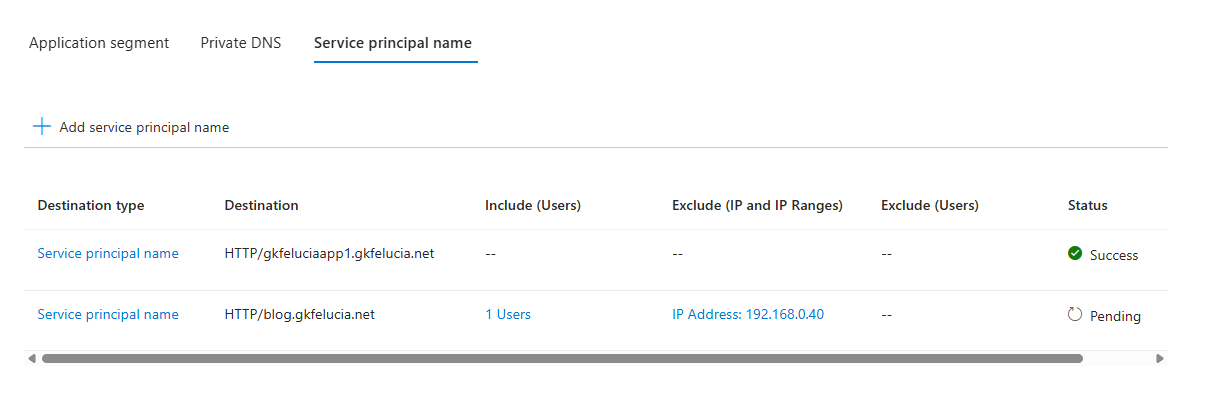 |
|---|
| Picture 7: configured SPNs |
💡It would be very useful to be able to use groups for scoping the rules.
We can then also view the result in the cloudpolicy.json file at the sensor installation path (on my DC it is: C:\Program Files\Private Access Sensor) on the domain controller:
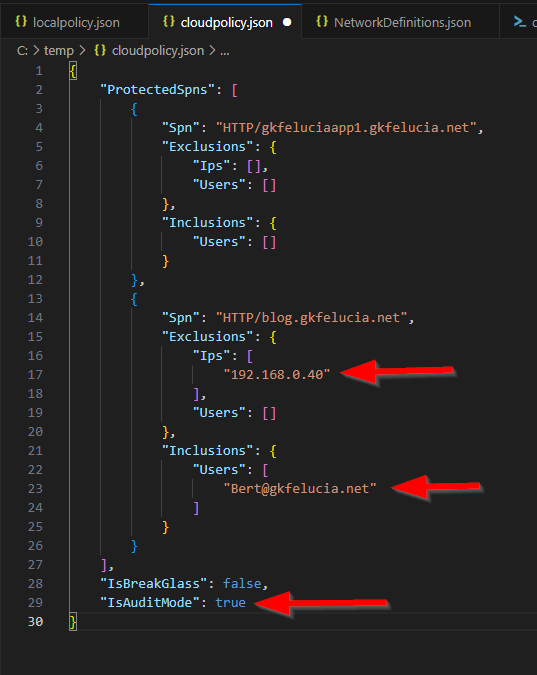 |
|---|
| Picture 8: cloudpolicy.json |
🆕 While only the first part of the UPN was used in the first version, the entire UPN is now set in the configuration.
Step 3: Allowlisting the Entra Network Connector
Right next to the cloudpolicy.json is the file localpolicy.json in which we can store the IP addresses of the Entra Network Connectors in the SourceIpAllowList. Since every system in this list is excluded from the the requirement to use GSA to get a Kerberos ticket you can (and should) include other systems such as servers or terminal services here.
 |
|---|
| Picture 9: localpolicy.json |
Step 4: Test
You can get a first impression of whether the Private Access Sensor is running correctly and the configuration is as intended in the event log Global Secure Access Client/Operational
So far, I have observed the following events:
| Event ID | Description |
|---|---|
| 7 | Kerberos request blocked |
| 8 | Kerberos request allowed |
| 13 | Invalid policy |
| 16 | Policy change detected, Private Access Sensor is running in audit mode with breakglass enabled/disabled. |
| 17 | Policy change detected, Private Access Sensor is running in enforcement mode with breakglass enabled/disabled. |
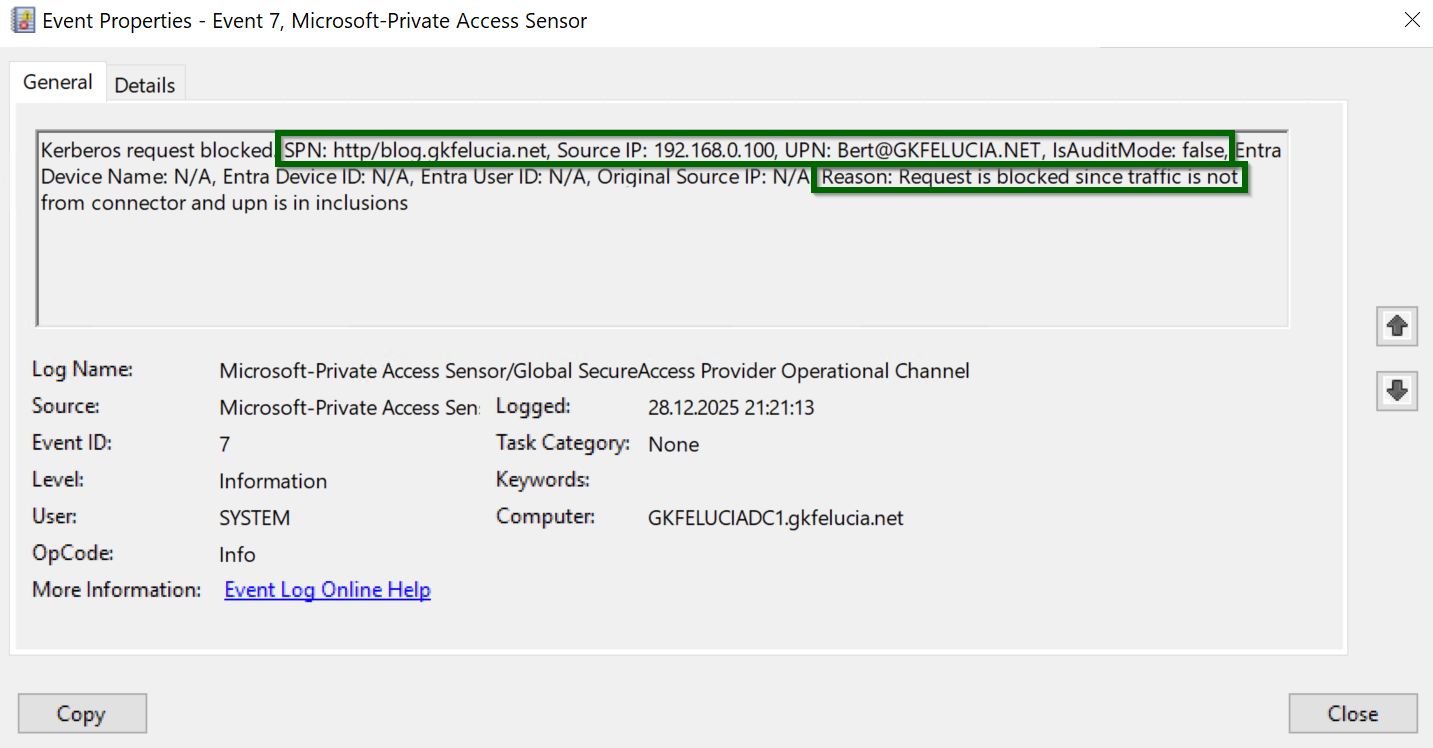
🆕 Events now include SPN, UPN, the source IP and the reason for the action. 🎉 In addition there also fields for DeviceName, EntraDeviceID, EntraUserID and the OriginalSourceIP prepared but not yet populated.
 |
|---|
| Picture 10: Event ID 7 - blocked request |
In the Global Secure Access Client/Operational event log, event IDs 7 (Kerberos request blocked) and 8 (Kerberos request allowed) are for this use case particularly interesting.
💡 Although Event ID 7 is only logged in enforcement mode, the Reason field (in Event ID 8) also shows us in audit mode when a request would be blocked.
 |
|---|
| Picture 11: Event ID 8 - Audit Block |
Sentinel / Monitor Integration
At this point in time, I strongly recommend ingesting the data from the above-mentioned log into a Log Analytics workspace. Nathan (here) and Morten (here) have described how best to do this via Azure Arc so well that all I can add is that the data collection rule:
- should affect all DCs
- should include Windows event logs with this XPath query:
Microsoft-Windows-Private Access Sensor-Operational!* - can be integrated into the analytics tier of a Sentinel, in my opinion, since we have a relatively small amount of data.
⚠️ If you Onboard Tier 0 systems like Domain Controllers to Azure Arc be aware that this can be a dangerous lateral movement path, since the agent can be used to execute eg. scripts in the system context of the DC. Reasonable measures include an isolated Azure subscription and disabling unnecessary management features (see here)
Shortly after configuring data collection, the events can be found in the Event table and can be processed further. Unfortunately, the data is still a bit cumbersome in XML, but I was able to quickly build a parser thanks to this blog by Clément Bonnet. I also included an evaluation of the reasons as the EPA_Action field to mark which requests would be blocked in enforcement mode.
let PrivateAccessSensor = Event
| where EventLog == "Microsoft-Windows-Private Access Sensor-Operational"
// only interesting fields=
| project EventData, EventID, TimeGenerated, Computer, RenderedDescription, UserName
// parse XML and store data
| extend EvData = parse_xml(EventData)
| extend EventDetail = EvData.DataItem.EventData.Data
| project-away EventData, EvData;
let PrivateAccessSensorAction=()
{
    let PrivateAccessSensorAction = PrivateAccessSensor
    | where EventID in(7,8)
    // extend fields
    | extend ServicePrincipalName = tostring(EventDetail.[0]["#text"])
    | extend SourceIPAddress = tostring(EventDetail.[1]["#text"])
    | extend UserPrincipalName = tostring(EventDetail.[2]["#text"])
    | extend IsAuditMode = tostring(EventDetail.[3]["#text"])
    | extend DeviceName = tostring(EventDetail.[4]["#text"])
    | extend EntraDeviceID = tostring(EventDetail.[5]["#text"])
    | extend EntraUserID = tostring(EventDetail.[6]["#text"])
    | extend OriginalSourceIP = tostring(EventDetail.[7]["#text"])
    | extend Reason = tostring(EventDetail.[8]["#text"])
    // evaluate action
    | extend EPA_Action = iff(EventID == 7, "Blocked", iff(EventID == 8  and Reason contains "blocked", "Audit-Blocked", "Allowed"))
    | project-away EventDetail;
    PrivateAccessSensorAction
};
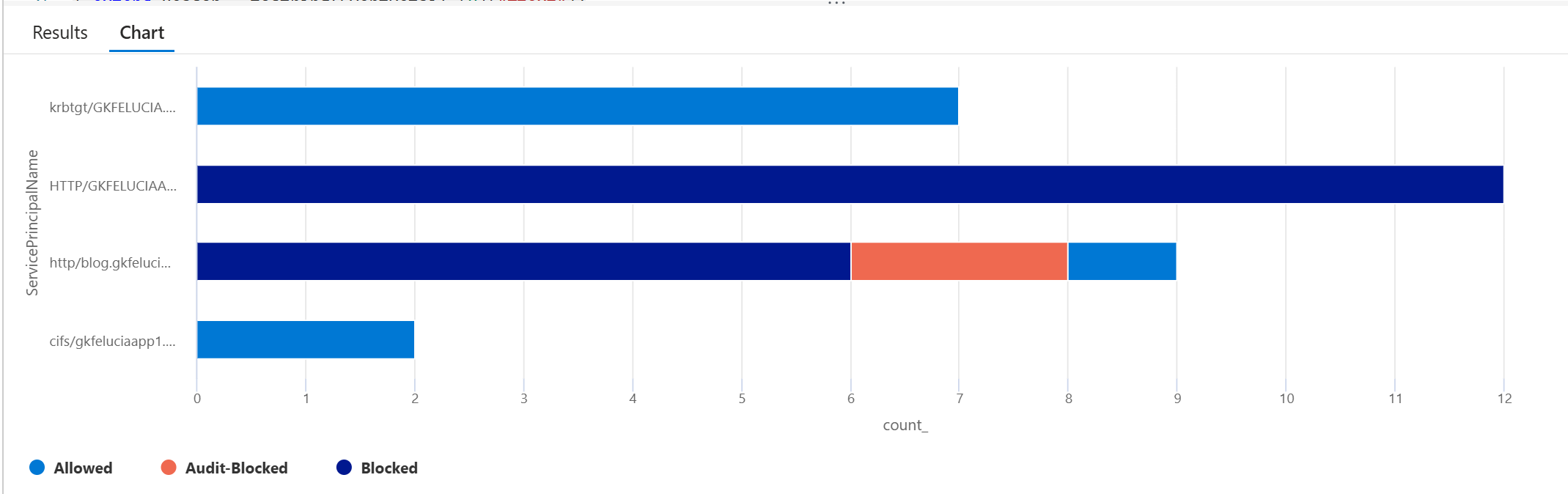
The parser then makes it easy to analyze the data further. In this example, we look at the number of actions by type for each SPN:
PrivateAccessSensorAction
| where UserPrincipalName contains "bert"
| summarize count() by ServicePrincipalName, EPA_Action
| render barchart with( kind=stacked )
 |
|---|
| Picture 12: Query users requests |
Fallback MDI
But if you have Microsoft Defender for Identity (MDI) running on the DCs (which I strongly recommend) you can use this query, for example, to get a simple overview of how big the impact of an activation would be:
let EntraNetworkConnectors = dynamic(['192.168.0.40','192.168.0.41']);
let SPNsInScope = dynamic(['http/blog.gkfelucia.net','http/gkfeluciaapp1.gkfelucia.net']);
IdentityLogonEvents
//| where Application == @"Active Directory"
| where Protocol == @"Kerberos"
| where LogonType == @"Resource access"
| extend ThroughGSA = iff(IPAddress in(EntraNetworkConnectors), true, false)
| extend SPN = split(AdditionalFields.Spns,',')
| mv-expand SPN
| extend SPN = tolower(tostring(SPN))
| where SPN in (SPNsInScope)
| summarize count() by SPN, AccountUpn, ThroughGSA, DeviceName, DestinationDeviceName, ActionType //, IPAddress, DestinationIPAddress
| sort by count_
In this example you can clearly see that I first have to take care of the user Waldorf before I disable the audit mode (Bert had his appearance in the demo above):
 |
|---|
| Picture 13: sample output |
Step 5: Disabling AuditMode
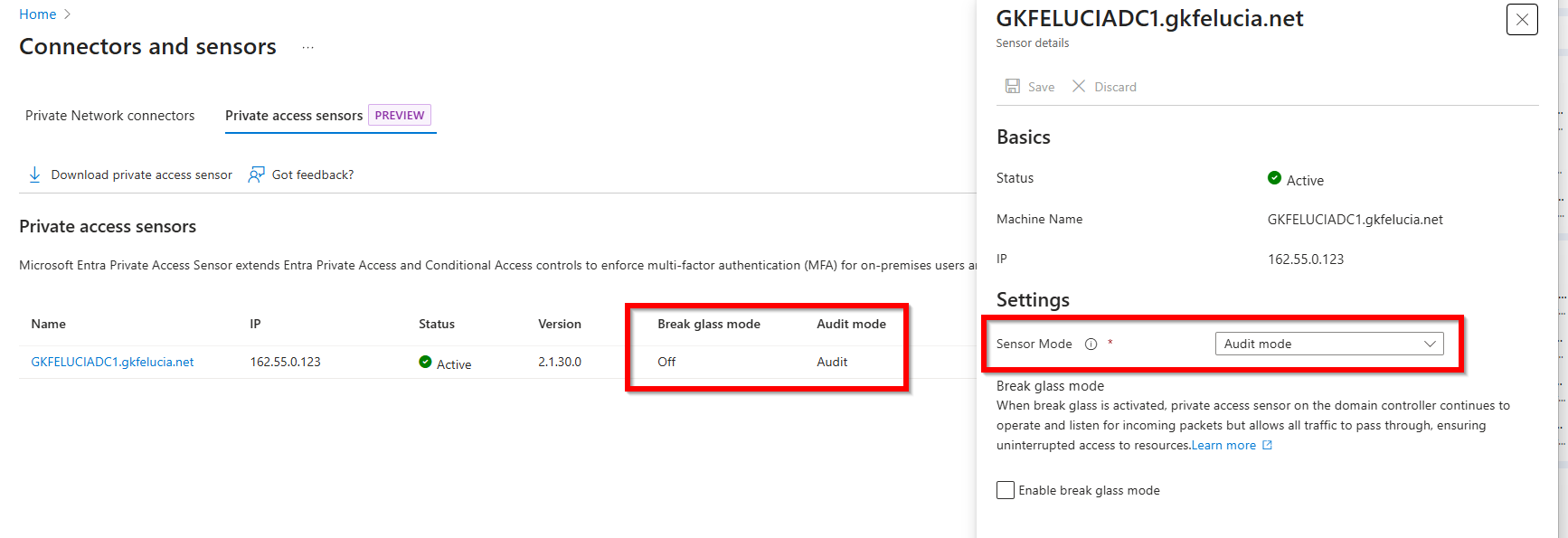
In the new version, the overview has been expanded to include Break Glass and Audit Mode. Audit Mode can now also be configured here:
 |
|---|
| Picture 14: Audit mode |
💡 In my opinion, it would be much more helpful to be able to configure audit mode per SPN instead of per sensor.
How to do a proof of concept
Unlike my initial impression of the feature, I now consider the maturity level to be clearly sufficient for proof of concepts in production environments—provided that the logs are ingested into Sentinel.
- Install and configure the sensors.
- Configure the SPNs for a test group and expand both successively.
- Let users test intensively, evaluate the logs centrally, and incorporate exclusions if necessary.
- Enable enforcement mode
- Optional: delete user include to enforce GSA usage globally for the SPN
However, for comprehensive use and more complex environments, I still find a few features missing (see summary).
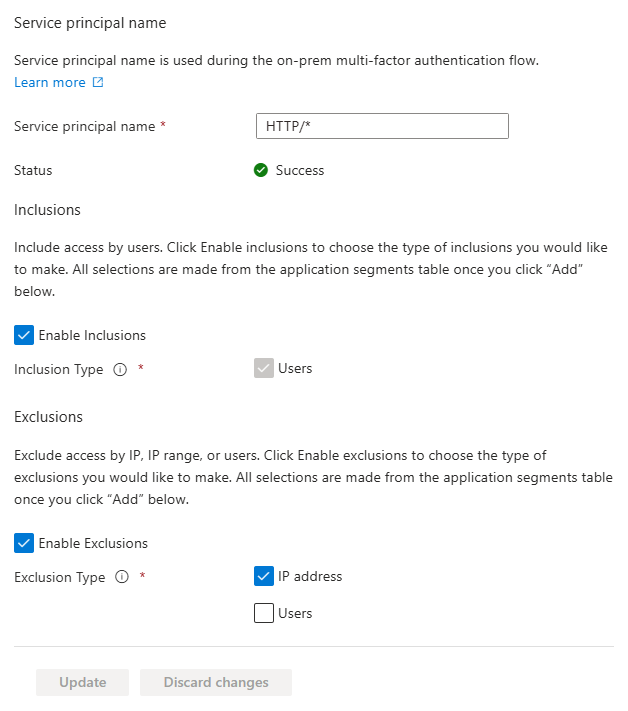
Using wildcards
In the Entra portal it is also possible to use wildcards, but unfortunately this is only limited to the service classes of the SPNs without the possibility to exclude individual SPNs. Here is an example:
 |
|---|
| Picture 15: Wildcards |
The NTLM problem
Okay now let’s talk about the elephant in the room: NTLM
In the prerequisites, there is this note that disabling NTLM in the environment would make a lot of sense for EPA4DCs to deliver the expected results:
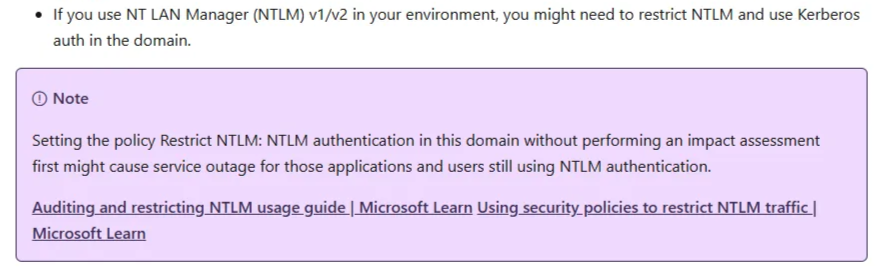 |
|---|
| Picture 16: The NTLM prereq |
The primary reason for this is that the sensor today only supports Kerberos and it is standard in Active Directory for systems to fall back to NTLM when Kerberos is unavailable. In my demo environment, I have configured the web server to only accept Kerberos (Picture 11). As soon as I also allow NTLM, I see a password prompt (Picture 12) and can log in.
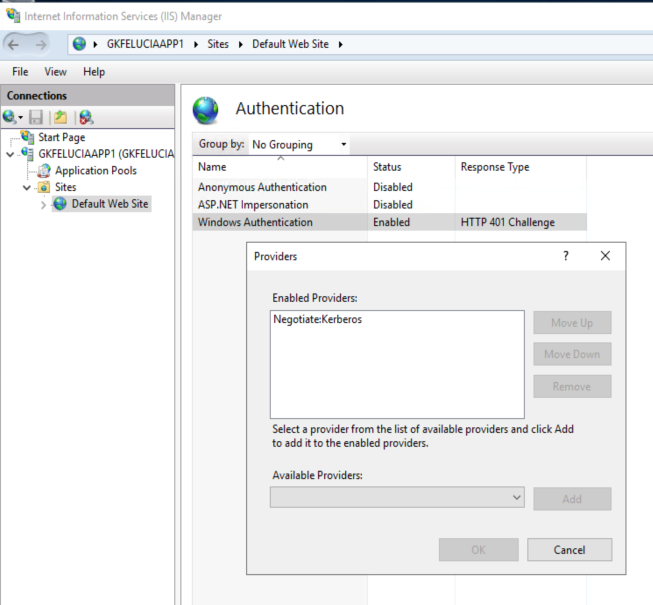 |
|---|
| Picture 17: Kerberos-only at the IIS |
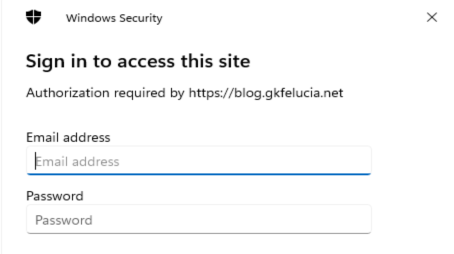 |
|---|
| Picture 18: NTLM password prompt |
There are many good reasons to switch off NTLM today and if we take a look at how authentication via NTLM works (image z), it also shows that the solution for securing Kerberos that Entra Private Access uses cannot simply be transferred.
However, since disabling NTLM is no easy task - as Steve Syfuhs explains here - we will need a solution. I am excited to see how this turns out!
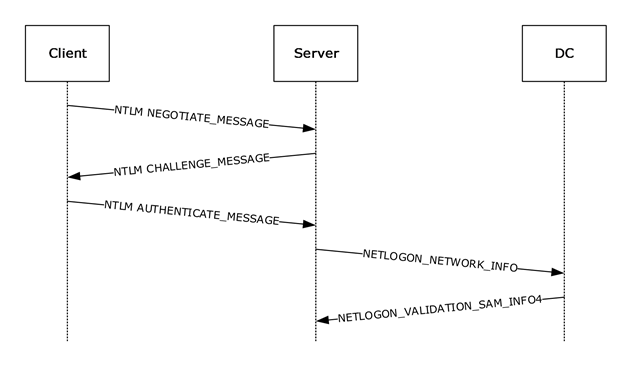 |
|---|
| Picture 19: NTLM auth flow |
Excursus: EPA4DC and KDC proxy
In addition to the question of how proofs of concept and rollouts of EPA4DC can be implemented, I am also very interested in the question of how EPA4DC and the KDC proxy, which I described in my blog on SSO in GSA, relate to each other.
If we look at the 3 core advantages of the KDC proxy and add the ability of the EPA agent to filter connections based on the criteria described above, the following picture emerges:
| KDC proxy | EPA 4 DC | |
|---|---|---|
| Strong Auth Enforcement | Windows Hello / Cert-based Authentication | Full Conditional Access Support |
| Direct connection to a domain controller | no | yes |
| Timeouts because of Negative DC locator caching | no | yes |
| Blocking of Kerberos TGS Requests for specific combinations of users/SPNs/IPs | no | yes |
So it’s worth taking a look at whether and how the two can be combined!
Requirements for coexistence
For the KDC proxy to work in combination with EPA4DCs, all proxies must also be included in the SourceIpAllowList. If the KDC proxies are running on the Entra Network Connectors of the Quick Access Connector Group, this is already the case. My extended test environment looks like this:
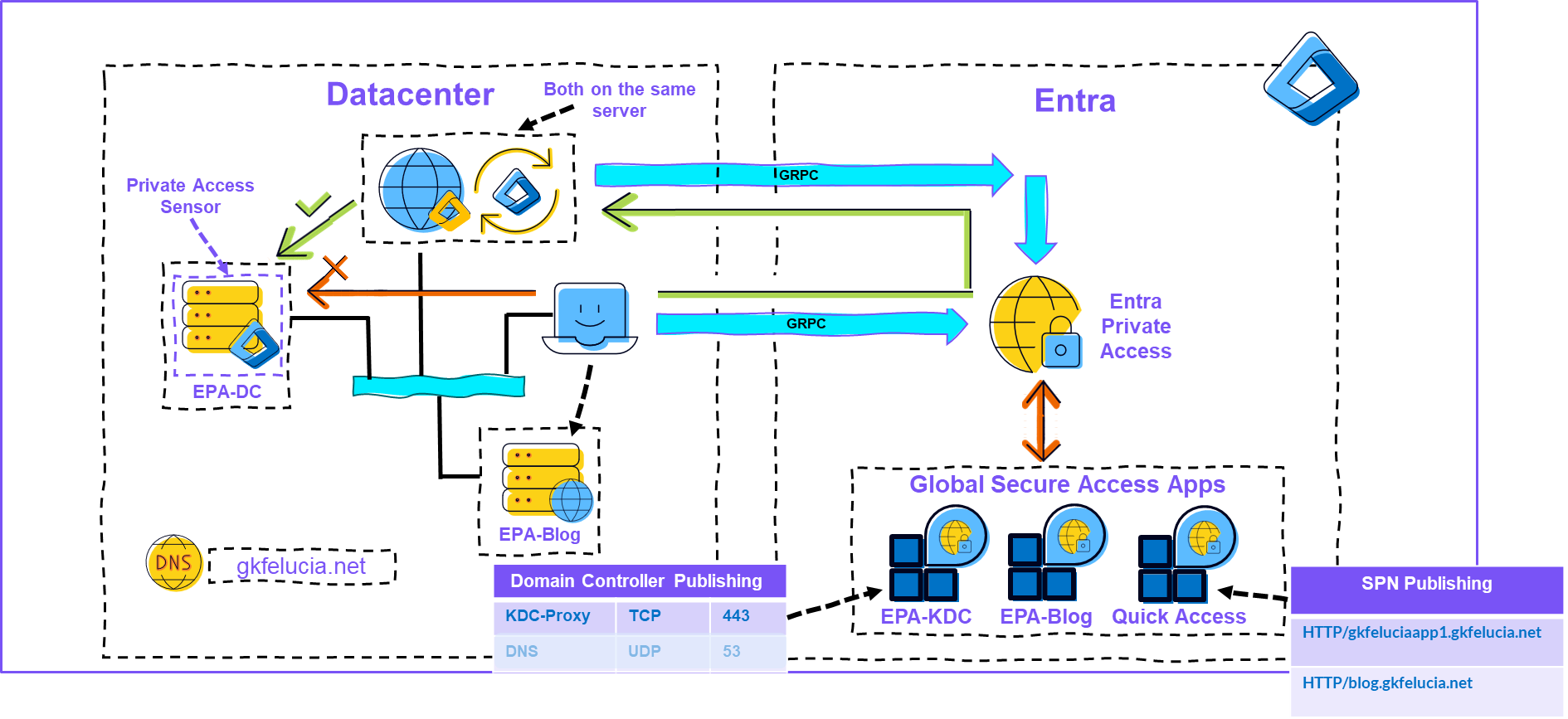 |
|---|
| Picture 20: Coexistence |
Hardening:
If we enforce with EPA4Dcs that Kerberos traffic must go through EPA, it also makes sense to ensure that the KDC proxy is only accessible via GSA so that it is not possible to subvert EPA4DCs.
When I set up a KDC proxy, I always use this script from Fabian. The last step in it is to create an inbound firewall rule and with a small adjustment there you can easily restrict access to the AppProxies:
...
**# Create an incoming firewall rule
$AppProxies =   @("192.168.0.40", "192.168.0.41")
New-NetFirewallRule -DisplayName "Allow KDC proxy TCP/443 for AppProxies" -Direction Inbound -Protocol TCP -LocalPort 443 -RemoteAddress $AppProxies**

# Set the KDC proxy service to automatic
Set-Service -StartupType Automatic -Name kpssvc
# Start the KDC proxy
Start-Service kpssvc
Summary (so far)
I have been recommending to my customers for years that they remove their clients from both AD and internal networks, and over the past year I have helped several companies test and implement Entra Private Access. But of course, I have also seen that for many, this is still a long way off. I see Microsoft Entra Private Access for Active Directory domain controllers as a great innovation that has the potential to significantly improve the security of many on-premises environments.
Compared to the first version, Entra Private Access for Domain Controllers has evolved significantly, and I think for many it is now at the level required for PoCs and selective use.
But of course, I have a few more features on my wish list:
- In the SPN configuration, groups for including and excluding users should be available for use. The use of connector groups for IP exclusion would also make sense.
- Integrated reporting (without Sentinel ingest) would be desirable.
- Audit mode should be configurable via SPN.
- It should be possible to install the sensors without a global admin login (see above).
- An SPN inventory/discovery would be great.
- NTLM support
I will update this blog when new features are added!
Attribution and References
Early video: https://www.youtube.com/watch?v=_p4bzmPl7MY
Documentary: https://learn.microsoft.com/en-us/entra/global-secure-access/how-to-configure-domain-controllers
SPNs: https://learn.microsoft.com/en-us/windows/win32/ad/service-principal-names
NTLM: https://learn.microsoft.com/en-us/windows/win32/secauthn/microsoft-ntlm
Steve Syfuhs on KDC proxy: https://syfuhs.net/windows-hello-cloud-trust
Fabian Bader on KDC proxy: https://cloudbrothers.info/windows-business-cloud-trust-kdc-proxy/
Nathan on Arc: https://nathanmcnulty.com/blog/2023/02/azure-arc-onboarding-servers-with-group-policy/
Morten on Data Collection Rules: https://mortenknudsen.net/?p=1687