This post is part of a series on the Microsoft Traffic Forwarding Profile in Global Secure Access:
- Why you should enable the Microsoft Traffic Forwarding Profile
- Token Replay Protection and the Compliant Network Check (this post)
- Universal Tenant Restrictions
- Coexistence with other Secure Web Gateways
- Logging
If you haven’t read the first post yet, it covers the basics of the Microsoft Traffic Forwarding Profile, how to enable it, and what the four security benefits are: Why you should enable the Microsoft Traffic Forwarding Profile.
Why token replay matters
For a long time, the dominant attack vector against Microsoft 365 environments was credential phishing – steal the password, log in as the user. MFA adoption has made this significantly harder, and attackers have adapted accordingly. The focus has shifted to post-authentication attacks: instead of stealing credentials, steal the tokens that are issued after a successful authentication. A valid token already satisfies MFA and device compliance requirements at the time of issuance, so replaying it from a different location or device can bypass both controls entirely.
The Microsoft Digital Defense Report 2024 tracked this shift: token theft attacks roughly doubled between 2022 and 2023, and AiTM phishing – which captures tokens in transit rather than stealing them from storage – grew by over 140% year-over-year. The 2025 edition adds a further dimension: infostealers – malware that silently extracts cached tokens from browser profiles and application stores without requiring any network-level intercept – are increasingly the primary delivery mechanism for stolen tokens. Microsoft’s analysis of the token theft attack chain documents 147,000 detected token replay attacks, a 111% increase year-over-year, with infostealer-sourced tokens accounting for a growing share.
Thomas Naunheim and Sami Lamppu have documented the technical detail of token attack scenarios extensively in the Entra ID Attack & Defense Playbook, which is the best reference I know of for understanding how these attacks work in practice.
The three token types and what attacking them looks like
Entra ID uses three types of tokens that are relevant here:
The Primary Refresh Token (PRT) is issued to the device itself and used to silently obtain other tokens without requiring the user to re-authenticate. It has a maximum lifetime of 90 days, with a 14-day inactivity window — if unused for 14 consecutive days, it expires regardless of the 90-day limit. On Entra-joined, Hybrid-joined or registered Windows devices, the PRT is protected by the TPM (when the TPM module is available at attestation), which makes it significantly harder to extract. On devices without TPM, or on macOS where tokens are stored in the Keychain, the attack surface is considerably larger. Thomas has written in detail about the macOS token storage scenario specifically. The PRT replay chapter of the Attack & Defense Playbook covers the full attack scenarios including TPM considerations, detection options and mitigations in depth – it is the most complete public documentation on this topic that I am aware of.
The Refresh Token (RT) is issued to applications and used to obtain new access tokens. It is valid for up to 90 days. Unlike the PRT, it is not bound to a device by default, which makes it more portable and therefore more attractive for attackers. The AiTM chapter of the Attack & Defense Playbook covers RT theft in the context of reverse-proxy phishing tools like Evilginx in detail – including detection approaches using GSA NetworkAccessTraffic logs.
The Access Token (AT) is the short-lived bearer token that applications use to authorize requests. The default lifetime is 60–90 minutes, but CAE-enabled applications can issue long-lived tokens with a validity of up to 28 hours. Access tokens can be captured in AiTM attacks and replayed directly against resource APIs within their validity window – without repeating the original authentication flow. The Compliant Network check in combination with CAE is the only control in this list that can invalidate an already-issued access token before it expires.
Why MFA and device compliance don’t stop token replay
When a user successfully authenticates against Entra ID, the resulting tokens carry claims that reflect the security controls that were satisfied at the time of issuance. This includes MFA claims, the device id (which is used to lookup the device compliance state), and authentication strength. These claims are embedded in the PRT and flow into subsequently issued refresh and access tokens.
This is precisely what makes token replay so effective as an attack vector. An attacker who obtains a valid refresh token does not need to bypass MFA or present a compliant device – those requirements were already satisfied by the legitimate user. The token is proof that they were. Replaying it from a different machine or location looks, from Entra’s perspective, like a continuation of an already-authenticated session.
Device compliance as a Conditional Access control therefore does not help here. Compliance was verified at the time of token issuance, and the token carries that proof forward. What happens to the token after issuance is outside the scope of Conditional Access as a standalone control.
Where existing controls fall short
Token Protection addresses part of this problem by cryptographically binding refresh tokens to the device on which they were issued, using Proof-of-Possession via WAM. This is a meaningful improvement for the RT scenario, but it comes with significant current limitations: it only works on Windows with WAM-enabled clients or Apple with Enterprise SSO, browser sessions are explicitly not covered, and resource coverage is limited to Apps like Exchange Online, SharePoint Online, and Teams. The ConsentFix post – which Fabian Bader, Thomas Naunheim, and I put together at the end of 2025 – shows in concrete terms where Token Protection helps and where it does not, using the authorization code theft scenario as an example.
Both device compliance and Token Protection share one structural limitation: they operate on the token issuance side. Neither of them can invalidate an access token that has already been issued and is being replayed elsewhere. This is the gap that Continuous Access Evaluation is designed to address – and the Compliant Network check is one of the signals that CAE can act on.
What the Compliant Network check adds
The Compliant Network check in Conditional Access uses the GSA service as a network signal. When enforced, Entra ID requires that token requests originate from a device connected to the GSA service for your tenant. This operates at two levels:
At the authentication plane, the check applies at the time of token issuance. If an attacker steals a refresh token and attempts to use it to obtain a new access token from outside the GSA network, Conditional Access evaluates the token issuance request and the condition can not be satisfied → the issuance will be blocked. This closes the RT replay scenario that device compliance and Token Protection alone cannot fully address across all platforms and client types.
At the data plane, the Compliant Network check works in combination with Continuous Access Evaluation. CAE-capable applications – currently Exchange Online and SharePoint Online – treat a transition from a compliant network to a non-compliant network as a user condition change, which triggers immediate re-authentication even if the access token is still within its validity period. As I described in my Global Secure Access in Conditional Access post, this combination provides meaningful protection against access token replay in CAE-capable applications.
The honest limitation is the same as for the other controls: the GSA client must be deployed on the endpoint, and the profile must be active for the user. The Compliant Network check applies to all Entra ID-integrated apps when configured accordingly – not just Microsoft 365 – but practical CAE coverage today is still limited to Exchange and SharePoint.
A comparison of the different approaches
| Compliant Device (or Hybrid-Join/Device State) | Token Protection | Compliant Network + CAE | Universal CAE | |
|---|---|---|---|---|
| Prevents AiTM (auth plane) | Yes | No | Yes | No |
| Prevents PRT Cookie replay (auth plane) | No | No | Yes | No |
| Prevents RT replay (auth plane) | No | Limited (no Browser) | Yes | No |
| Prevents AT replay (data plane) | No | No | Yes, via CAE (CAE-capable apps only) | Yes (GSA access tokens) |
| OS-Support | full (Windows, macOS iOS/Android, Linux) | Limited (Windows, macOS, iOS) | Limited (Windows, macOS, iOS, Android) | Limited (Windows, macOS) |
| Requires GSA client | No | No | Yes | Yes |
None of these controls is a silver bullet. Each closes different gaps:
💡 This table measures coverage – which attack scenarios each control applies to – not strength of enforcement. Where Token Protection applies, its guarantee is cryptographic: a stolen token cannot be used without the device’s private key, regardless of network location. Microsoft explicitly describes Token Protection as “the most secure method of protecting sign-in session tokens”. The Compliant Network check covers more scenarios and identities, but its enforcement is network-based rather than cryptographic. The two controls are complementary: Token Protection is stronger where it applies, Compliant Network is broader where it doesn’t.
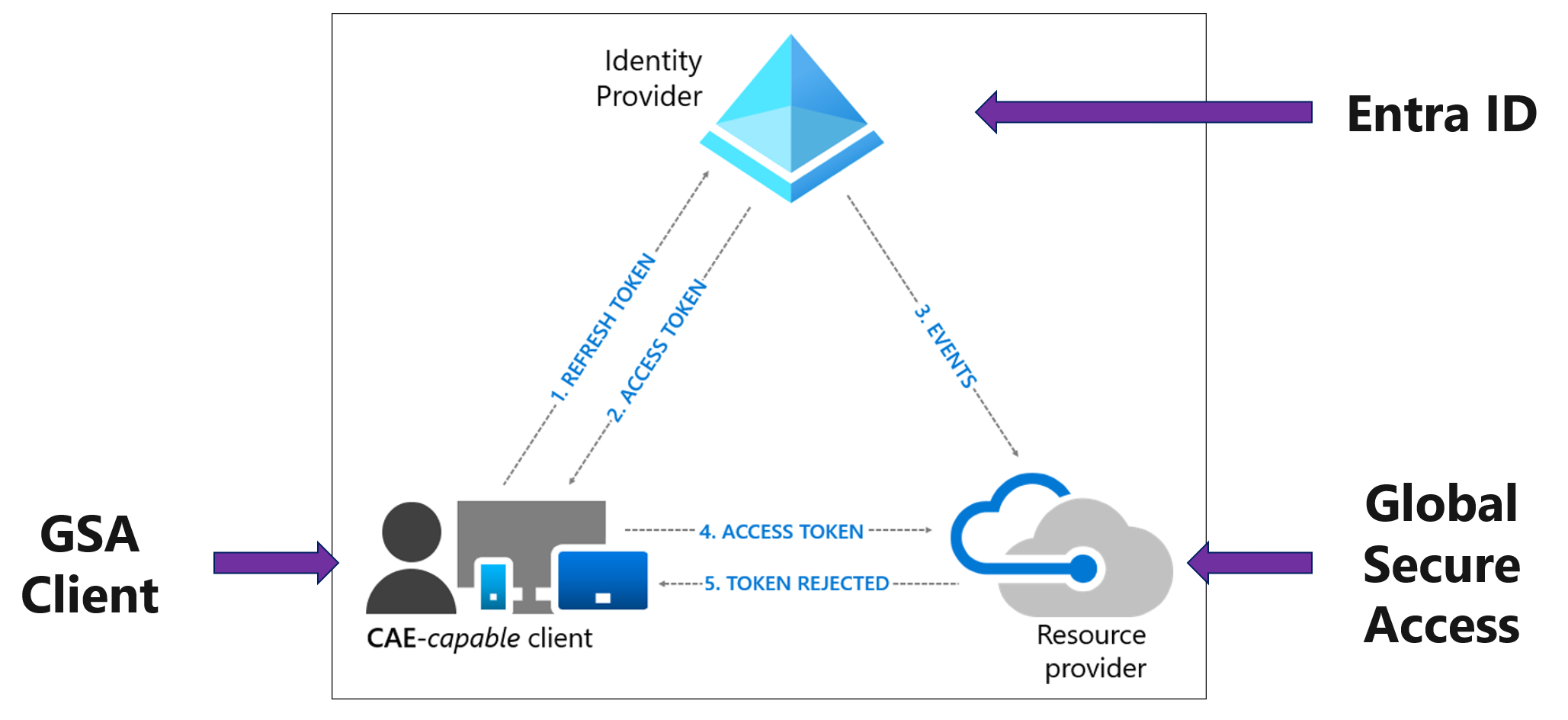
Universal CAE is worth a separate note. It protects the GSA access tokens themselves – the short-lived tokens the GSA client uses to authenticate to the service tunnels – against theft and replay. If an attacker captures a GSA access token and replays it from a different IP address, Universal CAE’s optional Strict Enforcement mode blocks the request. This is a different layer than the Compliant Network check: Compliant Network protects your Entra ID-integrated app tokens, Universal CAE protects the GSA service tokens. Both are worth enabling. The Microsoft documentation on Universal CAE covers the configuration details.
 |
|---|
| Universal CAE flow: the GSA client (1) uses a Refresh Token to obtain an Access Token from Entra ID, (2) Entra ID issues the Access Token, (3) Entra ID sends a revocation event to the GSA service, (4) the client attempts to use the Access Token at the resource provider, (5) the token is rejected in near real-time. |
 |
|---|
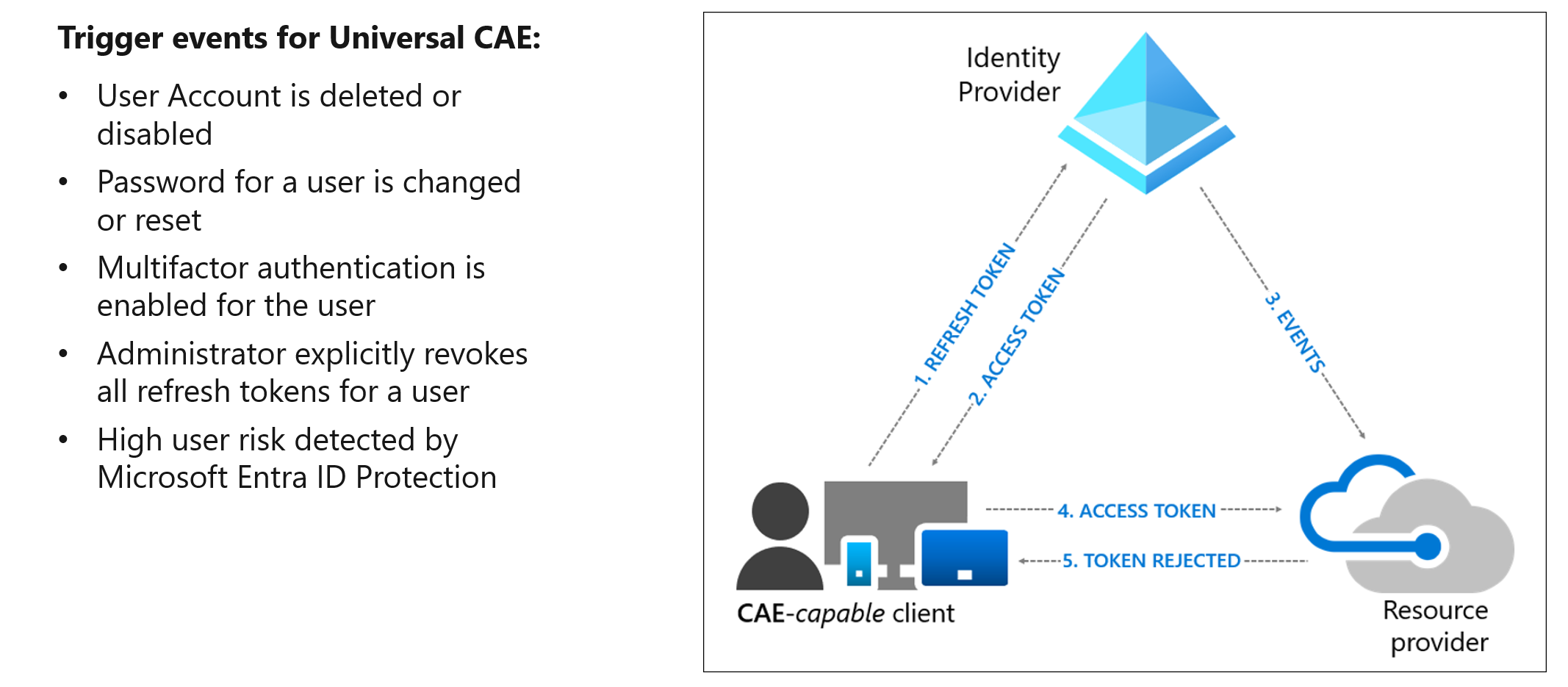
| Trigger events for Universal CAE: user account deleted or disabled, password changed or reset, MFA enabled, administrator explicitly revokes all refresh tokens, high user risk detected by Entra ID Protection. The highlighted trigger – explicit token revocation by an administrator – is particularly relevant for incident response scenarios. |
The practical conclusion is that these controls are complementary rather than alternatives. An environment with device compliance, Token Protection enabled where possible, Compliant Network enforced via GSA, and Universal CAE active covers significantly more of the attack surface than any single control alone. The combination of Compliant Network as a CA signal and CAE as the enforcement mechanism is the only approach in this list that can invalidate access tokens after issuance – relevant in scenarios where an already-issued AT is exfiltrated and replayed from outside the GSA network.
Demo: Blocking a PRT Cookie replay with the Compliant Network check
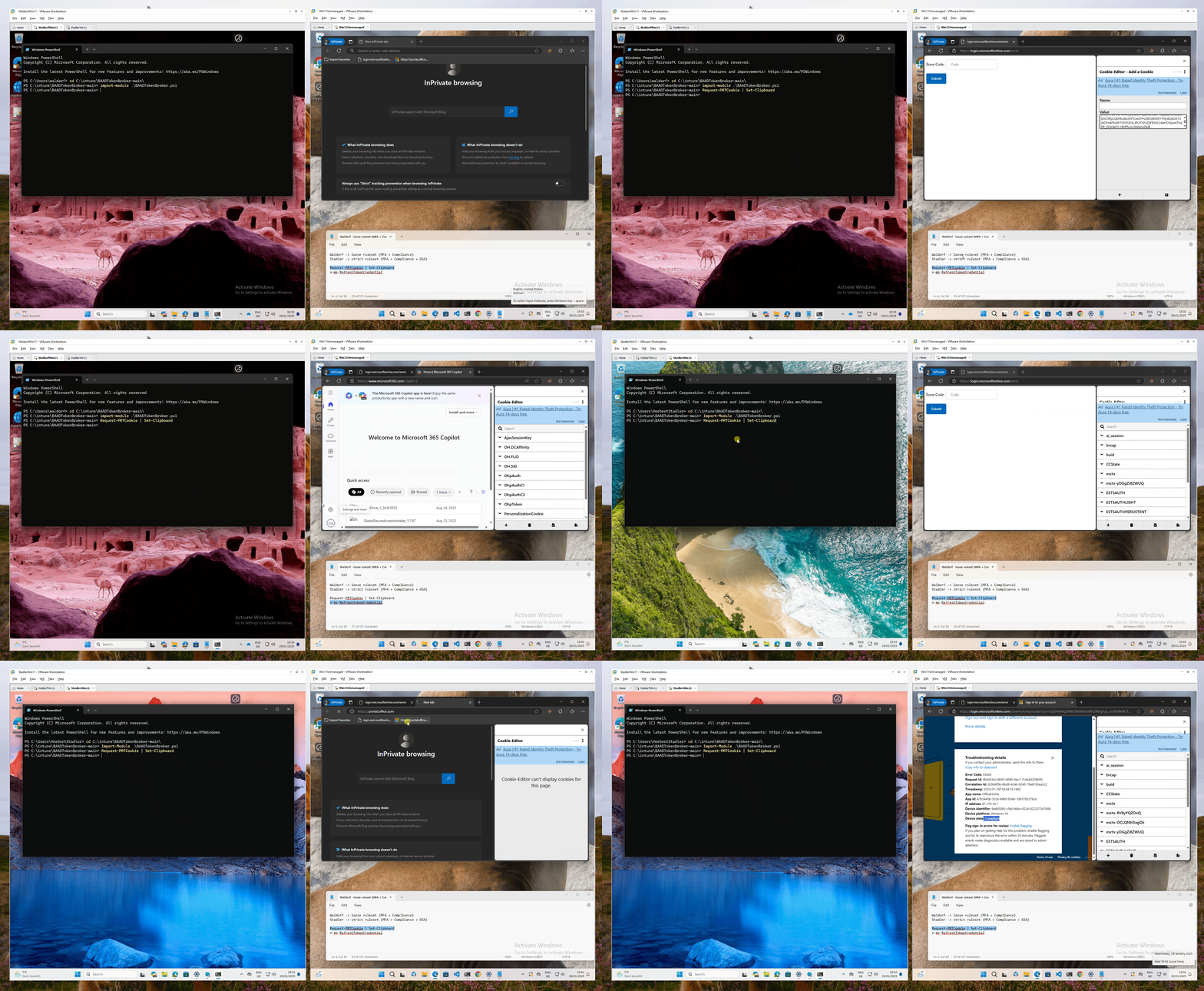
The following demo shows a token replay attack using BAADTokenBroker, a post-exploitation tool presented at Black Hat Asia 2024 by Yuya Chudo (Secureworks). The tool extracts the PRT Cookie from a managed Windows device by talking directly to lsass, and passes it to an attacker-controlled system which attempts to use it to authenticate against Microsoft 365.
The setup uses two victim clients with different Conditional Access policies:
- WaldorfWin11 – protected by MFA and Device Compliance only
- StadlerWin11 – protected by MFA, Device Compliance, and Compliant Network (GSA)
On both devices, BAADTokenBroker successfully generates and extracts the PRT Cookie – the tool works regardless of the CA policy in place, since it operates at the OS level before any network controls apply. The difference becomes visible when the attacker attempts to replay the cookie from the unmanaged attacker system:
- The token from WaldorfWin11 works. The attacker lands in Office 365 because Device Compliance and MFA claims are already embedded in the token.
- The token from StadlerWin11 is blocked. Entra ID enforces the Compliant Network check at the authentication plane and rejects the token request because it does not originate from within the GSA service.
 |
|---|
| BAADTokenBroker PRT Cookie generation, extraction and replay – blocked by Compliant Network on StadlerWin11, successful on WaldorfWin11 |
💡 This demo was recorded in January 2025 and reflects the behavior at that time. The attack technique itself remains valid. Since then, comparable PRT Cookie extraction techniques have also been demonstrated for macOS (DEF CON 33, August 2025), which underlines the importance of platform-independent mitigations like the Compliant Network check.
💡 Two notes on BAADTokenBroker that are relevant for the threat assessment:
First, the
Request-PRTCookiecommand – which extracts the PRT Cookie of the currently logged-in user by calling lsass directly – does not require administrative rights. Standard user context is sufficient. This significantly lowers the bar for exploitation, as an attacker with only user-level code execution on a device can extract the token. This has been confirmed independently for the Windows implementation and was also demonstrated for macOS at user-level permissions at TROOPERS 2025.Second, Microsoft Defender now detects and blocks BAADTokenBroker in its current form. This is worth noting as context for the demo – the tool as published is no longer a silent threat on Defender-protected endpoints. However, the underlying technique is well-documented and has been ported into other offensive tooling (including C2 frameworks), so the conceptual threat remains valid.
Enabling CA Signaling
Before the Compliant Network condition becomes available in Conditional Access, one prerequisite needs to be in place: GSA signaling must be enabled in the tenant. Navigate to Global Secure Access → Session management → Adaptive access and enable the toggle for GSA signaling in Conditional Access. This creates the named location All Compliant Network locations which then becomes selectable as a network condition in CA policies.
The Conditional Access policy
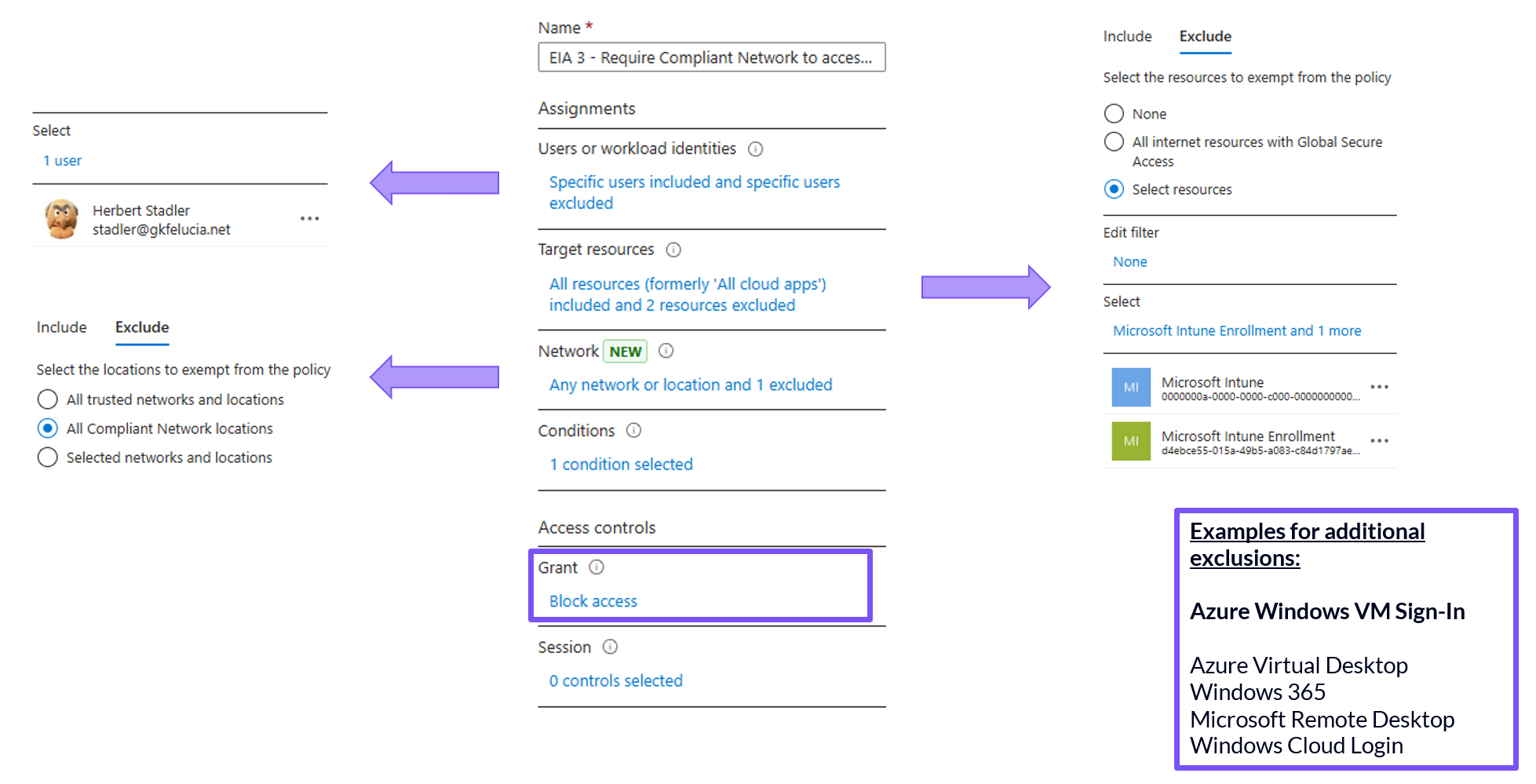
The Compliant Network check is configured as a network condition in CA. The recommended approach is a dedicated block policy:
- Target resources: All cloud apps (GSA resources are automatically excluded in the backend – no explicit exclusion needed)
- Network: Include → All locations; Exclude → All Compliant Network locations
- Grant: Block access
Any authentication not coming through the GSA service is blocked. The automatic exclusion of GSA resources itself ensures the client can always reach the service to establish the compliant network signal – no circular dependency there.
 |
|---|
| CA policy “EIA 3 - Require Compliant Network” showing the key configuration elements – Network condition excluding All Compliant Network locations, Grant set to Block access, and Target resources excluding Microsoft Intune and Microsoft Intune Enrollment. |
💡 GSA resources themselves do not need to be manually excluded. When Compliant Network is enabled in a CA policy, Entra ID automatically excludes the endpoints the GSA client needs to reach the service. Without this automatic exclusion, the client could never establish the compliant network signal in the first place – a circular dependency that Microsoft has resolved in the backend. This is also confirmed by Fabian Bader’s Conditional Access Bypasses research.
💡 All experience in this post is mainly based on Windows deployments. The GSA client is available for macOS, iOS, and Android as well, but I’m still validating the behavior on those platforms in production. Treat any non-Windows statements here as directional rather than confirmed.
Required exclusions
The automatic backend exclusions cover the GSA service itself, but several other services need explicit exclusions to avoid breaking your environment.
Mandatory exclusions
Microsoft Intune and Microsoft Intune Enrollment
This is the most important exclusion and the one most likely to cause problems if missed. Devices need to communicate with Intune before the GSA client is deployed – and in some enrollment scenarios, before the device is even registered in Entra ID. Both Microsoft Intune and Microsoft Intune Enrollment must be excluded from the Compliant Network policy.
This exclusion carries a security implication worth understanding: it creates the same type of chicken-egg bypass that exists for device compliance policies. The Compliant Device Bypass post that Fabian Bader, Thomas Naunheim and I wrote covers the broader context of this issue in detail. The short version: the exclusion is necessary and by design, but it means that Intune enrollment flows are not protected by the Compliant Network check.
Emergency Access Accounts
Break-glass accounts must always be excluded from Compliant Network policies – as they should be from all CA policies. If something breaks during rollout and the GSA client stops functioning, you need a way back in. Microsoft provides a break-glass recovery PowerShell script specifically for this scenario that re-enables forwarding profiles and CA policies after a GSA service disruption.
Recommended exclusions
Microsoft Defender mobile app
If you use the GSA client on mobile devices via the Defender app, specific Defender resources need to be excluded to avoid blocking the app from reaching the GSA service. Microsoft documents these exclusions separately under Defender mobile app exclusions from Conditional Access.
Optional exclusions – AVD, W365, and Remote Access scenarios
The following apps are relevant if your users access Azure VMs, Azure Virtual Desktop, Windows 365, or other Remote Desktop scenarios from unmanaged devices:
- Azure Windows VM Sign-In
- Azure Virtual Desktop
- Windows 365
- Microsoft Remote Desktop
- Windows Cloud Login
A common use case is allowing contractors or other users on unmanaged devices to reach a managed Remote Desktop environment, while the endpoint itself has no GSA client. A blanket exclusion from the Compliant Network policy would leave these authentications entirely unprotected.
The recommended approach is a separate CA policy that targets these apps specifically and requires phishing-resistant authentication as the grant control. This keeps the access path open for unmanaged devices while ensuring the authentication itself meets a high bar. It also avoids weakening the main Compliant Network policy with broad exclusions.
💡 It is worth noting that the B2B and BYOD capabilities of GSA do not apply to this scenario, for two distinct reasons.
First, those features – such as cross-tenant access and BYOD support – are specific to Entra Private Access and operate at the network tunnel level. The Microsoft Traffic Forwarding Profile has no equivalent capability for external or unmanaged devices.
Second, AVD and W365 scenarios typically involve an identity switch: the user authenticates with their own identity to reach the Remote Desktop environment, and then operates under a different identity inside the session. These are two separate authentication flows. The Compliant Network signal from the outer authentication does not carry over to the inner session, and the GSA client on the endpoint has no visibility into what happens inside the remote session.
Rollout considerations
A few practical points before enabling the policy:
Always start in report-only mode. Before enabling the policy, run it in report-only for at least a week. A misconfigured Compliant Network policy can lock users out of all Entra ID-integrated apps. The report-only phase will surface unexpected blocks – service accounts, non-Windows devices, apps you forgot about – before they become incidents.
💡 As with all conditional access hardening measures, it is important to consider not only interactive sign-ins but also non-interactive sign-ins. All the workbooks Microsoft provides here focus only on interactive sign-ins (likely for performance reasons). A few years ago, I created customized versions on this topic that may be helpful here.
Use platform filters for a phased rollout. Rather than rolling out the Compliant Network policy to all users at once, use device platform filters in your CA policy to target Windows devices first. This is the most straightforward approach since the Windows GSA client is the most mature and best-tested option. Other platforms can be added incrementally as the client deployment there is validated.
Take care for non-human identities Any user account configured as a service account that authenticates against Entra ID without a GSA client will be blocked. These should be identified during the report-only phase and either excluded from the policy or – where possible – migrated to managed identities which are not subject to user-facing CA policies. Workload identities – service principals and managed identities – are not affected as they are not included in user-scoped CA policies.
Consider starting with privileged identities. Rather than rolling out the Compliant Network policy to all users at once, it can make sense to start with your most sensitive accounts. The value the Compliant Network check provides is asymmetric: for a standard user it closes token replay scenarios that device compliance alone doesn’t cover, but for a privileged identity a compromised token can lead to tenant-wide impact. Requiring compliant network for privileged roles is therefore a meaningful security improvement even before broad user rollout is complete — though it is not a substitute for a dedicated Privileged Access Workstation program where that is in scope.
💡 One practical observation worth noting: the Compliant Network signal is device-wide, not user-specific. When the GSA client is active on a Windows device, the signal applies to all users authenticating from that device — including a separate admin account used in a different browser profile or Edge window. The admin account does not need to be the primary account registered with the GSA client. As long as the device has the client running and the Microsoft Traffic Profile active, the compliant network condition is satisfied for admin sign-ins on the same device.
What’s next
The next post in this series covers Universal Tenant Restrictions – how to use the Microsoft Traffic Profile to enforce which external Entra tenants your users are permitted to authenticate against.
Attribution and References
Huge thanks to Thomas Naunheim for proofreading and discussing all the (token) details. I owe you some cookies 🍪
References for the series are here