This post is part of a series on the Microsoft Traffic Forwarding Profile in Global Secure Access:
- Why you should enable the Microsoft Traffic Forwarding Profile (this post)
- Token Replay Protection and the Compliant Network Check
- Universal Tenant Restrictions
- Coexistence with other Secure Web Gateways
- Logging
The case for enabling it
The Microsoft Traffic Forwarding Profile tends to get overlooked in two different situations. In organizations that are already running a GSA project – typically starting with Entra Private Access – it often gets deprioritized because the focus is on getting the connector infrastructure in place and migrating VPN users. In organizations that are not using GSA at all, it rarely gets considered because GSA is perceived as a larger platform commitment.
Both assumptions are worth revisiting. The Microsoft Traffic Forwarding Profile does not require Private Network Connectors, additional licenses, or a full GSA rollout. For most organizations running Microsoft 365 E3, E5, or Business Premium, the relevant features are already included in Entra ID P1 or P2. The only requirements are enabling the profile in the Entra portal and deploying the GSA client to endpoints.
This makes it the most accessible part of GSA, and for some scenarios it is a compelling standalone deployment. If you are running a third-party SWG and dealing with IP mismatch issues in your Entra logs, or if you want to enforce Tenant Restrictions without relying on browser extensions or MDM-based proxy configurations, the Microsoft Traffic Profile solves those problems without requiring anything else from the GSA stack.
For organizations that are already in a GSA project, the recommendation is simple: take it along. The incremental effort is low and the security benefits are available from day one.
What the profile actually does
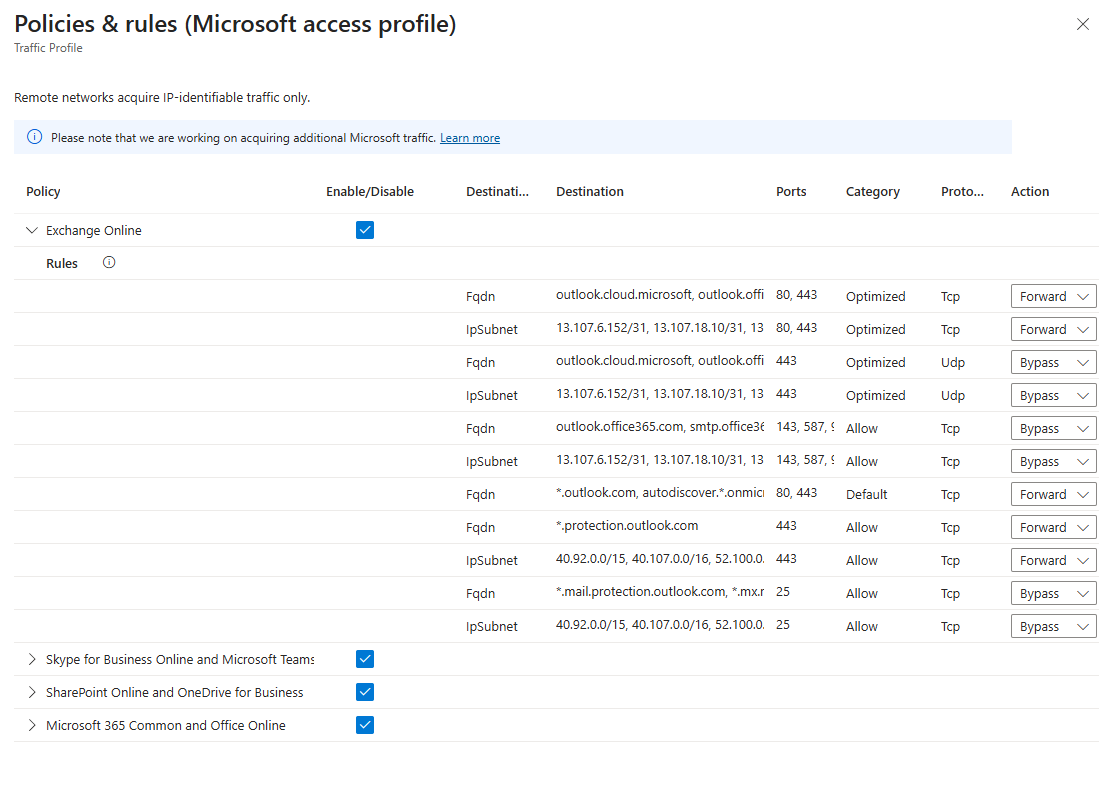
The Microsoft Traffic Forwarding Profile intercepts traffic destined for Microsoft 365 and Entra endpoints and routes it through the GSA service. Microsoft maintains the list of covered endpoints, so you don’t have to manage a URL list yourself.
 |
|---|
| The traffic acquisition rules for the Microsoft Traffic Forwarding Profile, showing the four service groups: Exchange Online, Skype for Business and Microsoft Teams, SharePoint Online and OneDrive for Business, and Microsoft 365 Common and Office Online. Each group defines FQDNs and IP subnets with their associated ports and actions (Forward or Bypass). |
The list is visible and partially configurable in the Entra portal under Global Secure Access → Connect → Traffic forwarding → Microsoft profile. Individual endpoints can be disabled if needed – for example when a specific service is already covered by a third-party SWG and you want to avoid double routing. Worth noting: when Microsoft adds new rules to the list, they automatically appear in Forward mode in your configuration. This means new Microsoft 365 services are covered without any manual action on your end, but it is worth keeping an eye on changes if you are running a selective configuration. The implications of that and how to approach it in a coexistence scenario are covered in detail in the fourth post of this series.
Beyond the routing itself, enabling the profile unlocks four capabilities that are worth having:
- Token Replay Protection – The GSA service can be used as a Compliant Network signal in Conditional Access, which closes some token theft scenarios that device compliance alone doesn’t cover.
- Universal Tenant Restrictions – Allows you to define which external Entra tenants your users are permitted to authenticate against, enforced at the network level.
- Coexistence with other Secure Web Gateways – When you run a third-party SWG alongside GSA, Microsoft services see the SWG’s egress IP instead of the user’s real IP. GSA restores the original source IP for Microsoft traffic, which matters for Entra ID Protection detections, sign-in log correlation, and the Authenticator app.
- Network Access Traffic Logs – A dedicated log table that correlates with Entra sign-in logs and M365 audit logs, giving your SOC team a cleaner picture of what’s happening at the network layer.
Each of these topics gets its own post in this series.
 |
|---|
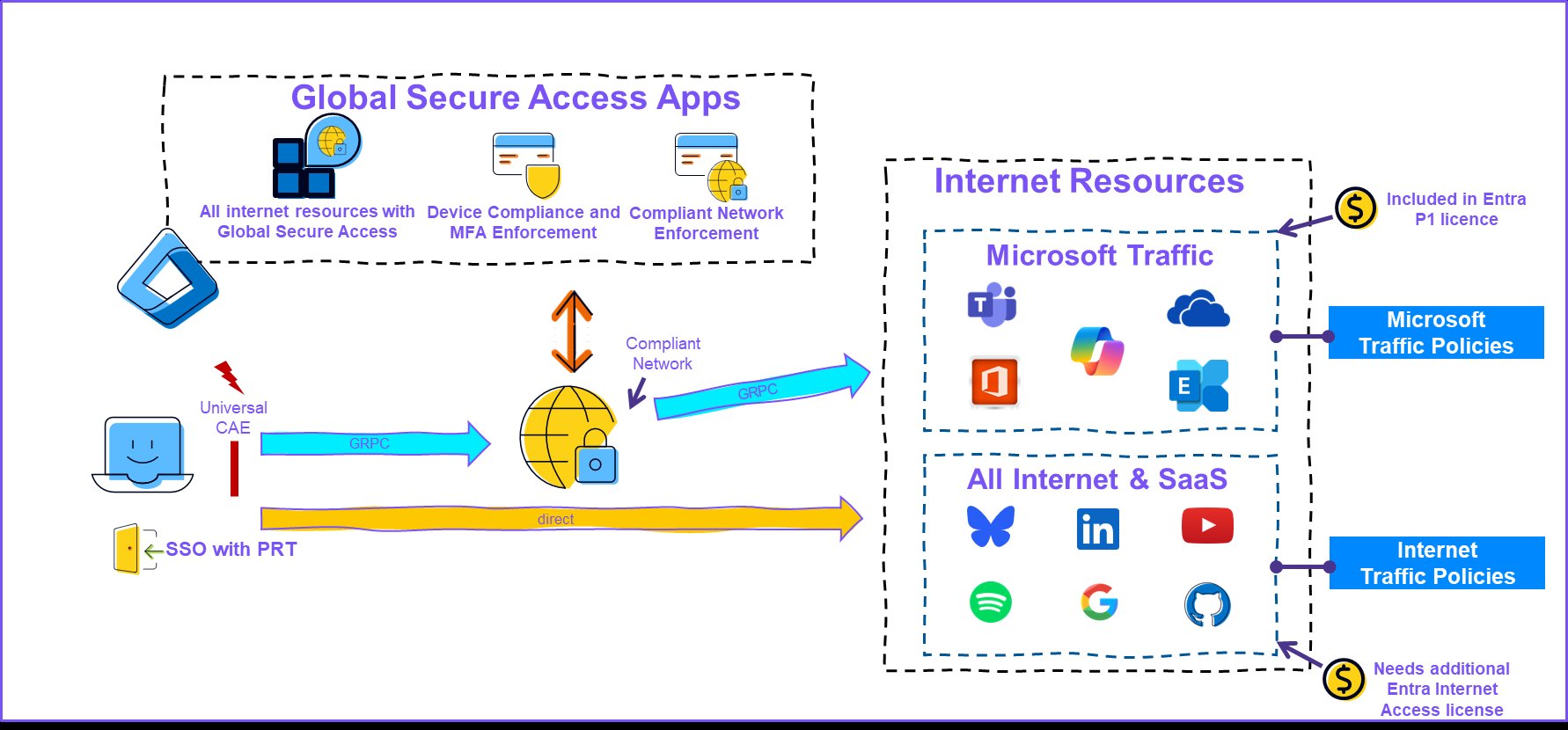
| The diagram shows the two traffic paths from the client: Microsoft 365 traffic tunneled via gRPC through the GSA service (blue arrow), and other traffic going directly to the internet (orange arrow). The Compliant Network signal originates at the GSA service and flows back to Entra ID via Conditional Access. |
💡 The key integration point on the client side is WAM (Web Account Manager). The GSA client uses the device’s Primary Refresh Token via WAM to authenticate to the GSA service – without requiring the user to sign in separately. This means the client inherits the device identity and its associated MFA and compliance claims, and establishes the Compliant Network signal that Entra ID can evaluate in Conditional Access. Universal CAE adds a further layer: the GSA service itself is continuously evaluated by Entra ID, meaning that changes to user or device state take effect in near real-time rather than waiting for token expiry.
What happens without the client
The profile assignment alone is not enough. The GSA client needs to be installed and connected on the endpoint for traffic to actually be routed through the service. Without the client, the profile assignment has no effect for that device – traffic goes directly to Microsoft 365 endpoints as it normally would, and none of the four capabilities listed above are active.
This means the deployment sequence matters. Enabling the profile before the client is rolled out does no harm, but the security benefits only materialize once the client is active on the endpoint. A phased rollout using a security group to control both profile assignment and client deployment is the most practical approach.
One additional note: if you plan to use the Compliant Network check in Conditional Access – covered in the next post in this series – the GSA client is a hard requirement. A Compliant Network signal can only be established through an active client connection. This means that once you enable the Compliant Network condition in CA, any device without the client will be blocked from accessing the protected resources.
Enabling the profile
To enable the Microsoft Traffic Forwarding Profile, the account performing the configuration requires the Global Secure Access Administrator role. To assign the profile to users or groups, the Application Administrator role is additionally required – or scoped to the relevant service principal if you want to limit the blast radius of that role.
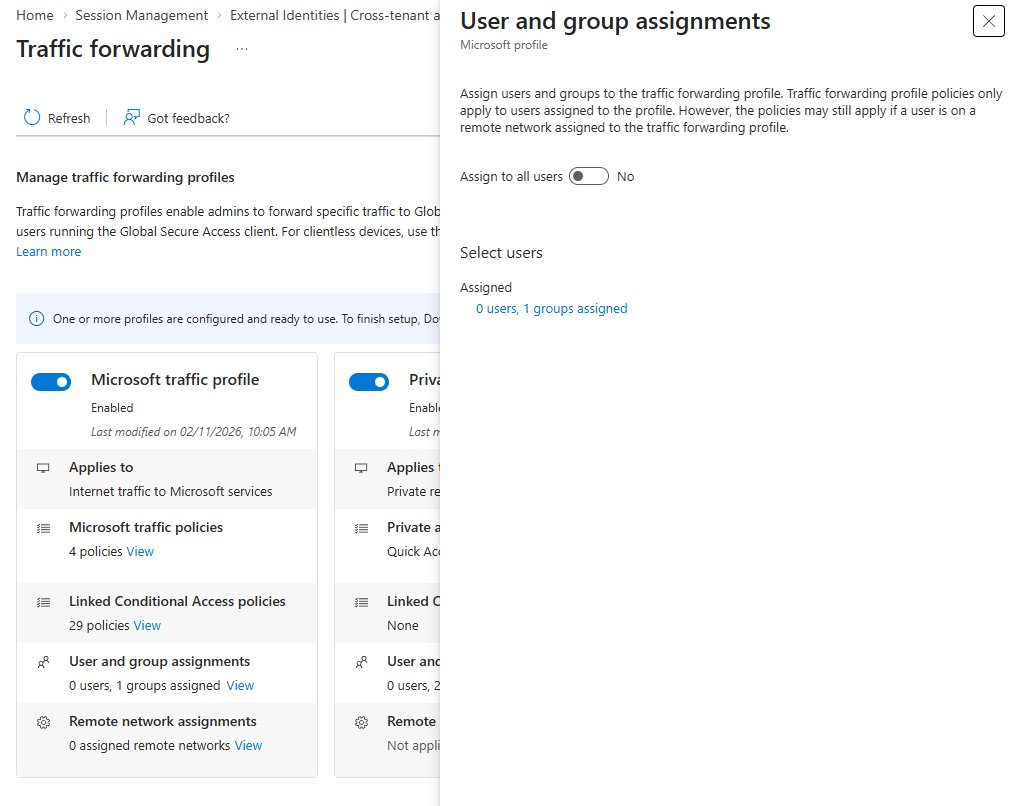
In the Entra admin center, navigate to Global Secure Access → Connect → Traffic forwarding and enable the Microsoft Traffic profile. You can assign it to all users or restrict it to a specific non-nested security group.
If you prefer to manage the configuration as code or want to automate the rollout, the Entra PowerShell Beta module (Microsoft.Graph.Entra) includes GSA-specific cmdlets and is the cleanest option for scripting profile enablement and group assignment. For larger deployments or migrations from other SSE solutions, the Migrate2GSA toolkit – a community project maintained by Microsoft employees – provides a broader set of GSA provisioning tools worth knowing about.
 |
|---|
| Traffic Forwarding Profile in the Entra portal – profile enabled with group assignment showing 0 users, 1 group assigned. The panel on the right shows the User and group assignments flyout where you can assign the profile to all users or a specific group. |
The group assignment here is worth thinking through. Since nesting is not supported, whatever group you use for the profile assignment should also drive your client deployment. My preferred approach is to use an Access Package in Entra ID Governance – this gives you a clean approval workflow and keeps the group membership in sync with the deployment without manual overhead.
Deploying the client
The GSA client for Windows is available from the Entra portal under Global Secure Access → Connect → Client download. Deployment via Intune is straightforward using the downloaded installer.
Before rolling out the client, make sure the prerequisites are in place on the target devices. The two most common issues are IPv6 and Secure DNS still being enabled, and QUIC not being disabled in the browser. I covered both in the Overview to Global Secure Access.
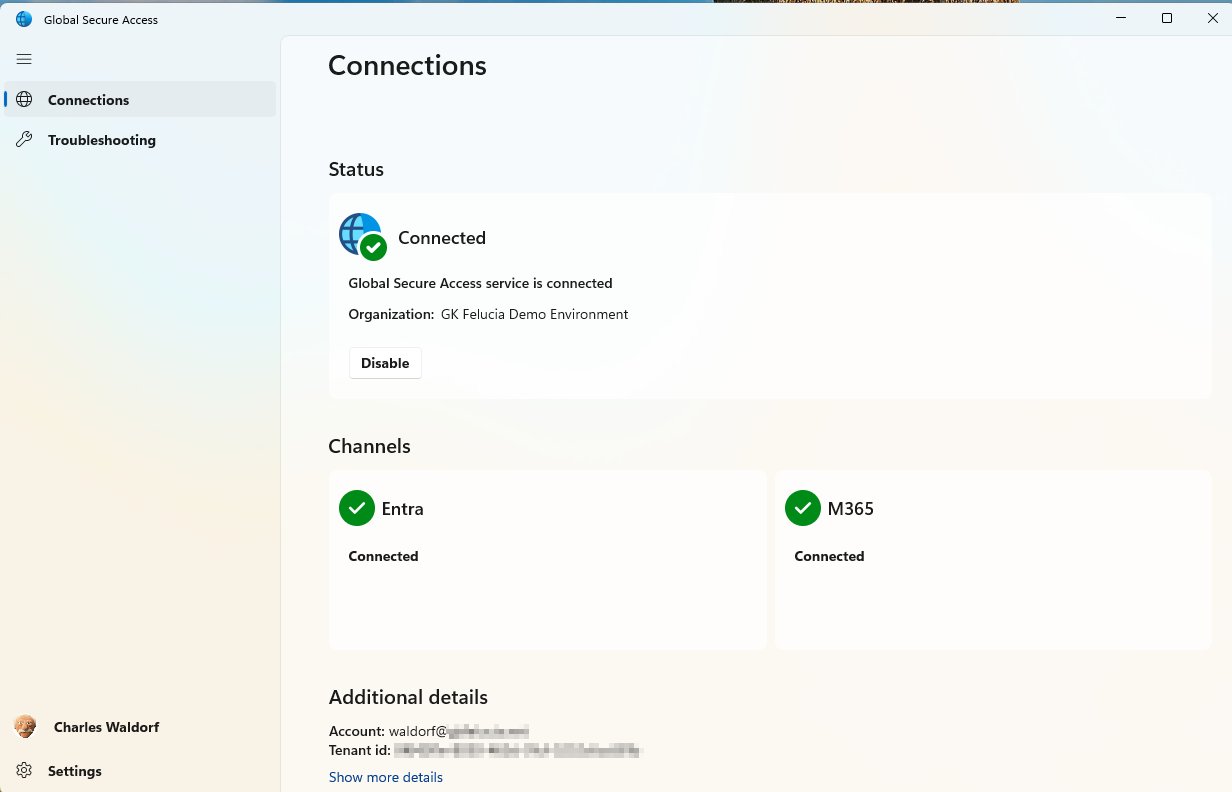
Once the client is installed and the profile is assigned, you should see the Microsoft Traffic channel as connected in the client UI within a few minutes.
 |
|---|
| GSA client showing Entra and M365 channels as connected. Note that Private Access is not shown here – this is a deployment with only the Microsoft Traffic Profile enabled. |
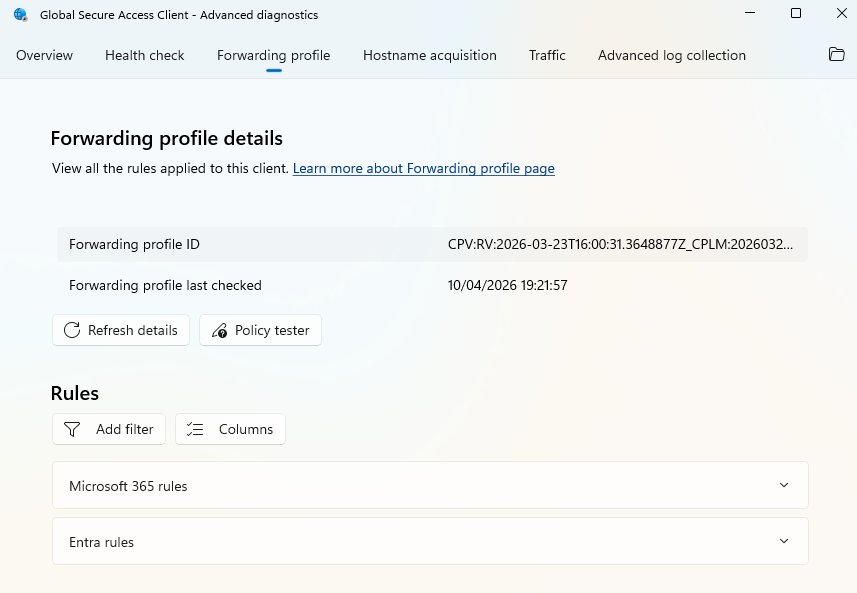
For troubleshooting or verifying which rules are active, the Advanced diagnostics panel under the client’s troubleshooting section shows the forwarding profile details including the active Microsoft 365 and Entra rules.
 |
|---|
| GSA client Advanced diagnostics – Forwarding profile tab showing Microsoft 365 rules and Entra rules applied to this client. |
Licensing
The Microsoft Traffic Forwarding Profile is included in Entra ID P1 and P2. No additional SKU is required for the profile itself.
Most organizations running any of the following are already covered:
- Microsoft 365 Business Premium
- Microsoft 365 E3 or E5
- Entra ID P1 or P2 (standalone)
If you are unsure about your current licensing, the Entra admin center shows the active licenses under Billing → Licenses.
What’s next
The next post in this series covers Token Replay Protection and the Compliant Network Check – including the threat landscape, how the different controls compare, and what to watch out for when rolling out the CA policy.
Attribution and References
References for the series are here