This post is part of a series on the Microsoft Traffic Forwarding Profile in Global Secure Access:
- Why you should enable the Microsoft Traffic Forwarding Profile
- Token Replay Protection and the Compliant Network Check
- Universal Tenant Restrictions (this post)
- Coexistence with other Secure Web Gateways
- Logging
If you haven’t read the first post yet, it covers the basics of the Microsoft Traffic Forwarding Profile, how to enable it, and what the four security benefits are: Why you should enable the Microsoft Traffic Forwarding Profile.
The DLP problem this solves
Data loss prevention in Microsoft 365 environments has traditionally focused on what happens inside the tenant – labeling, classification, DLP policies on Exchange and SharePoint. But there is a category of exfiltration that none of those controls address: a user who simply logs into a different tenant and copies data there.
This is not a theoretical threat. A user with a personal Microsoft account, or an account in an attacker-controlled tenant, can open SharePoint Online or OneDrive in a browser on a managed corporate device and upload anything they have access to. No DLP policy in your tenant sees this traffic. No label policy can follow the data once it leaves. The only thing standing between your data and that external destination is whether the user can successfully authenticate to it.
Universal Tenant Restrictions closes this gap by controlling which external Entra tenants users are permitted to authenticate against from your managed devices. It does not matter which browser they use, which application they open, or whether they are on the corporate network. As long as the device has the GSA client running, the Microsoft Traffic Profile will enforce the policy.
This makes Universal Tenant Restrictions a foundational DLP control – not a replacement for content-based DLP, but a necessary complement to it.
Two mechanisms, one DLP strategy
Universal Tenant Restrictions work best when combined with the Outbound Cross-Tenant Access Settings in Entra External ID. The two controls operate at different layers and close different gaps:
Universal Tenant Restrictions control what external tenants your users can authenticate against using any identity – including personal Microsoft accounts and accounts from attacker-controlled tenants. This is enforced at the network level via the GSA client. A user who tries to sign in to an unauthorized external tenant from a managed device is blocked before the authentication completes.
Outbound Cross-Tenant Access Settings control whether your users are permitted to be invited as guests into external tenants using their corporate identity. By default, your users can accept guest invitations from any external tenant. With outbound settings, you can restrict this to a defined allowlist of trusted partner tenants.
The two controls are complementary:
| Scenario | Universal TR | Outbound Cross-Tenant Access |
|---|---|---|
| User tries to sign in with personal Microsoft account | Blocks | No effect |
| User tries to sign in with account from attacker tenant | Blocks | No effect |
| User accepts guest invitation from unauthorized partner tenant using corporate identity | No effect | Blocks |
| User accepts guest invitation from authorized partner tenant | Allows (if in allowlist) | Allows |
Neither control alone is sufficient. Universal TR without Outbound settings leaves a gap for corporate identities being invited to uncontrolled tenants. Outbound settings without Universal TR leave a gap for personal and attacker-controlled identities. Together they provide a meaningful DLP boundary.
A look back: why the old approach had problems
Tenant Restrictions are not a new concept. The original version (TRv1) required routing all authentication traffic through a corporate proxy and injecting a custom HTTP header that told Microsoft Entra ID which tenants to allow. This worked, but it came with significant operational overhead:
- Every managed device had to route authentication traffic through the proxy
- The proxy had to perform TLS inspection on Microsoft login endpoints
- The allowed tenant list lived in the proxy configuration and had to be maintained there
- Remote workers and devices that bypassed the proxy were not protected
- There was no per-user or per-app granularity – the allow list was all-or-nothing
In modern environments with direct internet breakout, split tunneling, and the expectation that cloud services are accessed without hairpinning through a datacenter, TRv1 simply did not work reliably.
TRv2 moved the policy to the server side – the allow list is configured in Entra and referenced by a policy ID, not embedded in proxy headers. Universal Tenant Restrictions via GSA takes this further by removing the proxy dependency entirely: the GSA client tags traffic directly, regardless of the device’s network path.
For a detailed migration guide from TRv1 to TRv2, Microsoft has published a dedicated migration document that covers the step-by-step process.
How TRv2 works
TRv2 moves the enforcement logic to the server side. Instead of embedding an allow list in proxy headers, the policy is configured once in Entra ID and referenced by a policy ID. The GSA client then tags authentication traffic at the device level with this policy identifier – no proxy, no TLS inspection required.
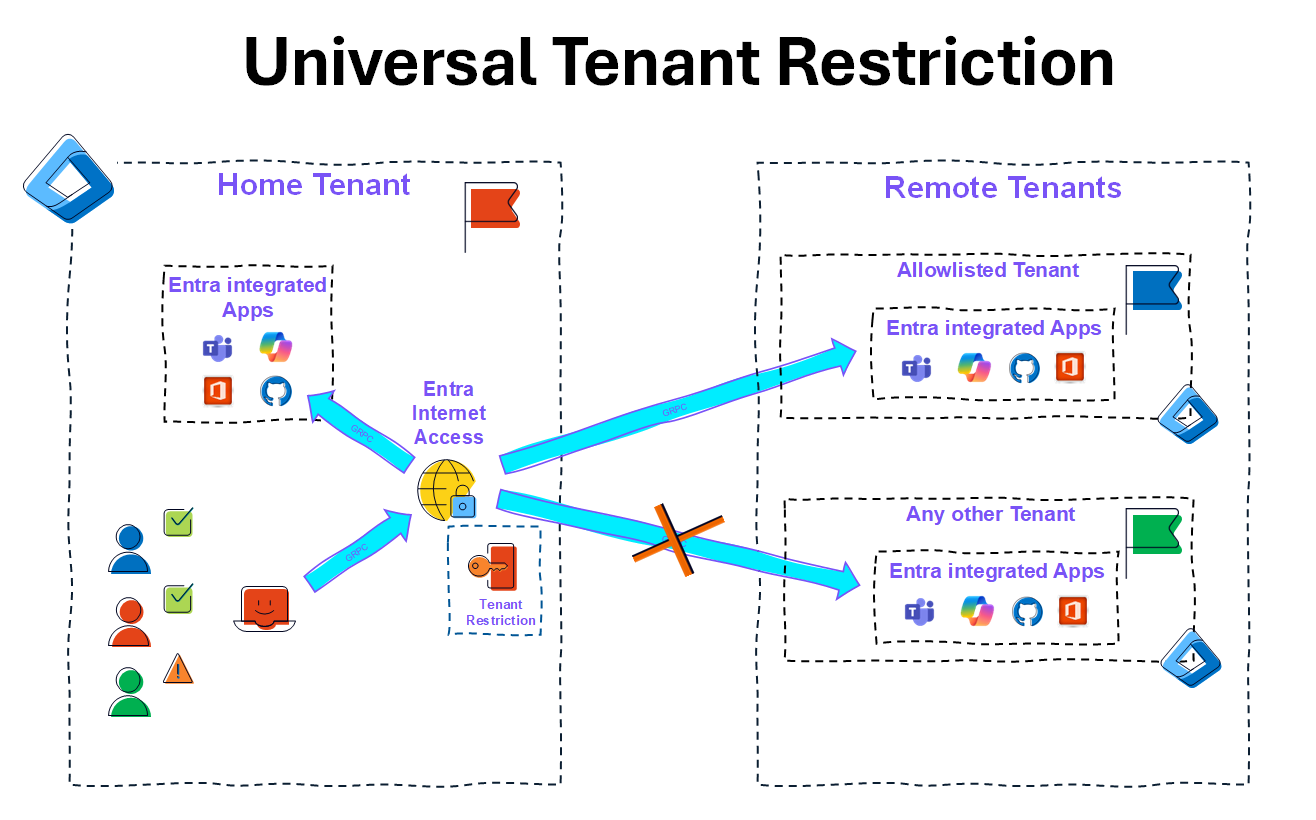
When a user on a managed device attempts to authenticate against any Microsoft service, the GSA client injects the TRv2 policy signal into the request. Microsoft’s authentication infrastructure reads this signal and enforces the policy: requests to tenants on the allowlist are permitted, requests to any other tenant are blocked before the sign-in completes. This applies regardless of which browser or application the user is using, and regardless of the device’s network path.
 |
|---|
| Universal Tenant Restrictions via GSA: authentication traffic from managed devices is tagged with the TRv2 policy. Sign-ins to allowlisted tenants pass through; sign-ins to any other tenant are blocked at the authentication plane. |
Configuration
The configuration has two parts: the TRv2 policy in Cross-Tenant Access Settings, and enabling Universal TR enforcement in GSA.
Step 1: Configure the TRv2 policy
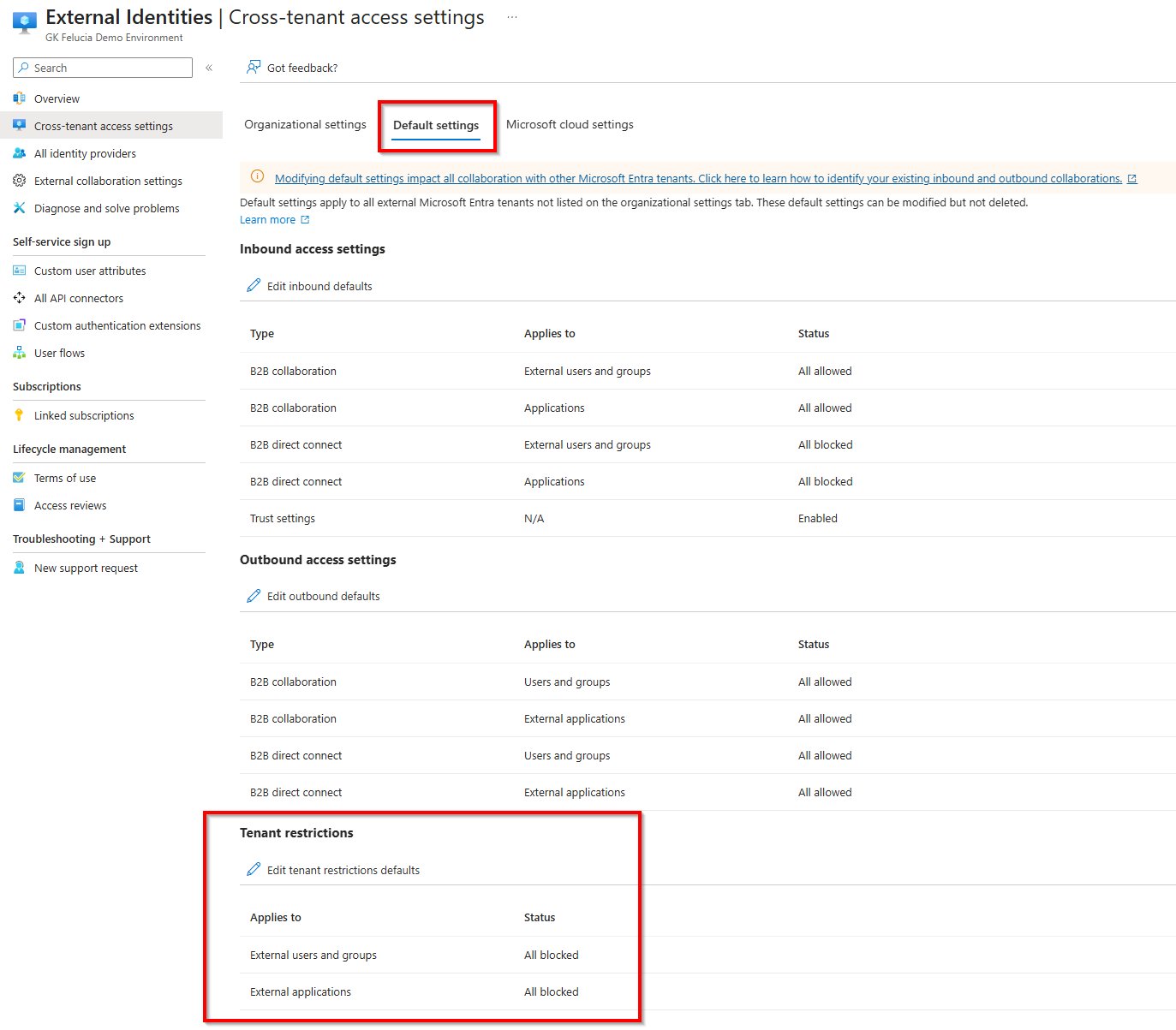
Navigate to Entra ID → External Identities → Cross-tenant access settings → Default settings → Tenant Restrictions.
Here you define the default behavior for all external tenants. The recommended starting point is to block all external users and applications by default, and then add explicit exceptions for tenants your organization has a legitimate need to access.
 |
|---|
| Default settings tab showing Tenant Restrictions section with “All blocked” for external users and applications |
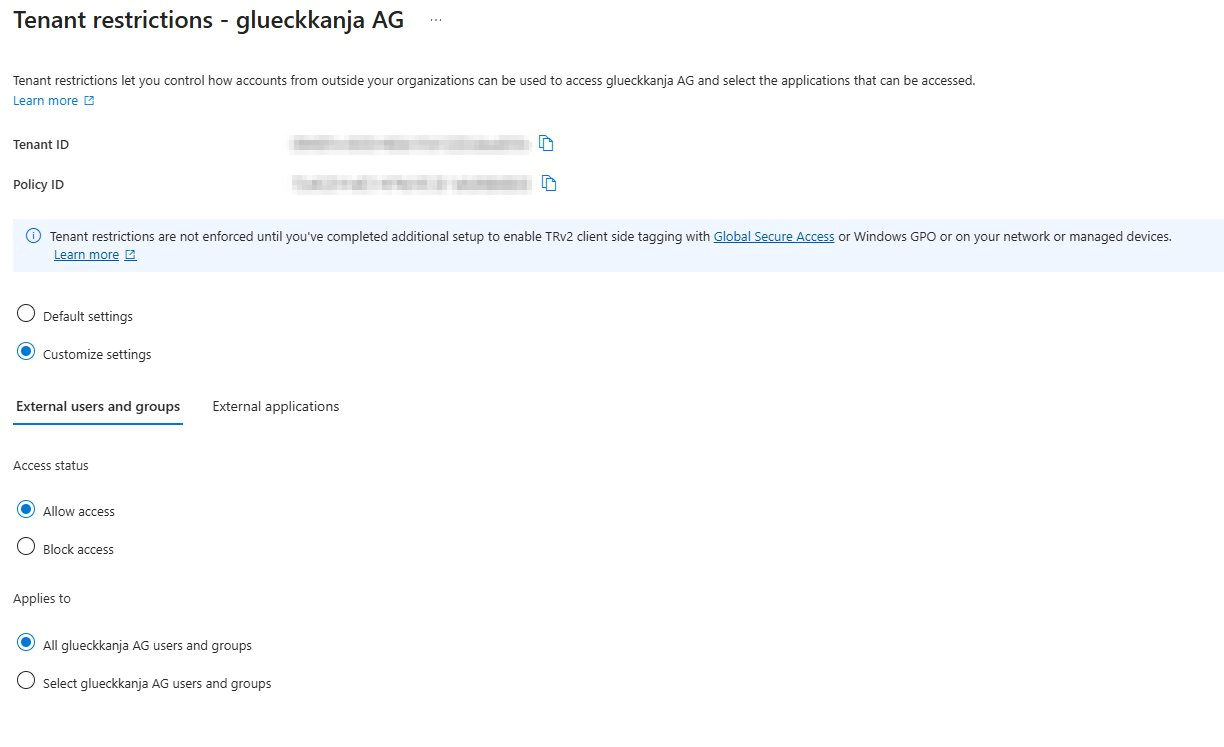
For each exception, navigate to Organizational settings and add the tenant. You can scope the exception to specific users, groups, or applications rather than allowing the entire tenant.
 |
|---|
| Organizational settings for a specific partner tenant – showing Tenant ID, Policy ID, and the option to scope access to specific users and groups |
💡 Always scope exceptions as narrowly as possible. If a consultant needs access to a specific external tenant, add that tenant to Organizational settings and restrict it to that user or their group – not to all users. This prevents a single exception request from opening the tenant up for everyone in the organization.
💡 Note the Tenant ID and Policy ID shown in the Organizational settings – you will need both to verify enforcement is working correctly. Also note the info banner on this page: the policy has no effect until TRv2 client-side tagging is enabled via GSA or Windows GPO. Configuring the policy here is a prerequisite, but not sufficient on its own.
Step 2: Enable Universal Tenant Restrictions in GSA
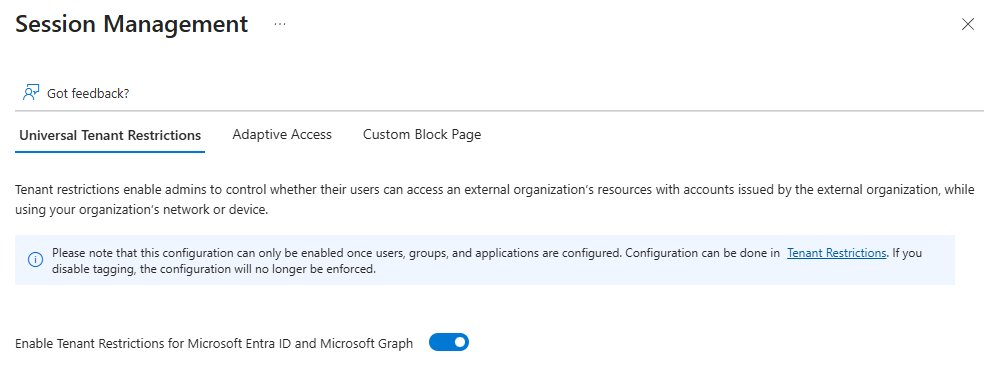
Navigate to Global Secure Access → Settings → Session management → Universal Tenant Restrictions and enable the toggle Enable Tenant Restrictions for Microsoft Entra ID and Microsoft Graph.
 |
|---|
| Universal Tenant Restrictions toggle in GSA Session Management |
💡 The toggle can only be enabled once users, groups, and applications are configured in the TRv2 policy. If the policy is still empty, the portal will not allow activation.
Once enabled, the GSA client begins tagging authentication traffic with the TRv2 policy metadata. Users attempting to sign in to external tenants not on the allowlist will receive an error message:
“Access is blocked. The [your organization] IT department has restricted which organizations can be accessed.”
Required roles
- Global Secure Access Administrator to manage the GSA settings
- Security Administrator to configure the TRv2 policy in Cross-Tenant Access Settings
Before you enable: understanding the impact
Unlike the Compliant Network check covered in the previous post, Universal Tenant Restrictions has no report-only mode. Once enabled, it enforces immediately for all users with the GSA client active.
The good news is that you do not need to configure anything to start the analysis – Universal TR has no effect until you explicitly enable the toggle in GSA. This means you can deploy the GSA client, collect data, and build your allowlist before any enforcement happens.
Step 1: Identify which external tenants are being accessed
The following query uses the GSA NetworkAccessTraffic logs to identify external tenants that your users are authenticating against, excluding your own tenant and tenants where at least one user already has a B2B relationship.
// 9188040d-6c67-4c5b-b112-36a304b66dad == Microsoft Accounts Tenant
// This tenant will typically dominate results – personal OneDrive, Xbox, etc.
let TimeRange = 30d;
let HomeTenant = (
    SigninLogs
    | where TimeGenerated > ago(TimeRange)
    | where HomeTenantId == ResourceTenantId
    | project HomeTenantId
    | take 1
    // Assumes single-tenant Sentinel workspace
);
let OutboundB2BTenants = (
    UnifiedSignInLogs
    | where TimeGenerated > ago(TimeRange)
    | where HomeTenantId has_any(HomeTenant)
    | where HomeTenantId != ResourceTenantId
    | distinct ResourceTenantId
    | project ResourceTenantId
);
NetworkAccessTraffic
| where TimeGenerated > ago(TimeRange)
| where TrafficType == "microsoft365"
| where isnotempty(ResourceTenantId)
| where ResourceTenantId <> TenantId
| where not (ResourceTenantId has_any (OutboundB2BTenants))
| where DestinationFqdn == "login.microsoftonline.com"
| where not (ResourceTenantId has_any (HomeTenant))
| project-reorder ResourceTenantId
| summarize
    devices = dcount(DeviceId)
    by ResourceTenantId
| sort by devices desc
💡 Known limitation: This query excludes tenants where at least one user already has a B2B relationship – these are filtered out via the
OutboundB2BTenantssubquery. This means that if a tenant is used for both legitimate B2B collaboration and unauthorized personal access, it will not appear in the results. The query is therefore best understood as a baseline for unknown external tenant traffic, not a complete picture of all external authentication attempts.
To identify what a tenant ID corresponds to, you can look it up in the Entra portal under Cross-Tenant Access Settings or use @DrAzureAD’s AADInternals OSINT tool to resolve a tenant ID to a domain name.
Step 2: Drill down into a specific tenant
Once you have identified a tenant worth investigating, use this query to find out which devices – and through them, which users – are connecting to it. Note that the external sign-in itself does not appear in your logs, so we identify the user via the DeviceId from the Corporate sign-in logs.
let TargetTenant = "<ResourceTenantId>";
let TimeRange = 30d;
let AffectedDevices = (
    NetworkAccessTraffic
    | where TimeGenerated > ago(TimeRange)
    | where TrafficType == "microsoft365"
    | where ResourceTenantId == TargetTenant
    | where DestinationFqdn == "login.microsoftonline.com"
    | summarize
        lastSeen = max(TimeGenerated),
        connectionCount = count()
        by DeviceId
);
AffectedDevices
| join kind=leftouter (
    SigninLogs
    | where TimeGenerated > ago(TimeRange)
    | where HomeTenantId == ResourceTenantId
    | extend DeviceId = tostring(DeviceDetail.deviceId)
    | summarize
        lastSignIn = max(TimeGenerated)
        by DeviceId, UserPrincipalName
) on DeviceId
| project DeviceId, UserPrincipalName, lastSeen, lastSignIn, connectionCount
| sort by connectionCount desc
Step 3: Build the allowlist and plan the rollout
Based on the results, identify which external tenants represent legitimate business needs – partner tenants, tool vendors, consultant access – and add them to the TRv2 allowlist in Cross-Tenant Access Settings. For tenants that cannot be immediately classified, collect them over a longer period before making a decision.
Before you enable: establish an approval process
Before activating Universal Tenant Restrictions, define how exceptions will be handled after enforcement is live. Without a process in place, the first blocked users will create ad-hoc requests that get approved without proper review – and the allowlist will grow uncontrolled over time.
A minimal approval process should answer the following questions:
- Who can request an exception for a specific external tenant?
- Who approves the request, and based on which criteria?
- Is the access time-limited or permanent?
- How is the allowlist kept up to date – including removing tenants that are no longer needed?
When an exception is approved, configure it as narrowly as possible: scope the Organizational settings entry to the requesting user or group, not to all users. This keeps the allowlist manageable and prevents exceptions from silently expanding over time.
The process does not need to be technically enforced. For most organizations, a ticket-based workflow is sufficient. What matters is that the process exists, is communicated to users before enforcement starts, and that the team managing the allowlist has a clear mandate to deny requests that do not meet the criteria.
Rather than enabling enforcement immediately after configuring the policy, announce the change to your users in advance. Users who legitimately work in external tenants will be affected and need time to either raise exceptions or switch to B2B collaboration. A phased rollout – first a pilot group, then broader enforcement – reduces the risk of disruption.
Reporting after enforcement
Once Universal TR is active, the blocked sign-in attempt happens at the external tenant’s authentication plane – which means the error event lands in the external tenant’s logs, not in yours. From your own tenant’s perspective, you only see that the GSA client tagged the traffic with the TRv2 policy signal.
The error code users will see is AADSTS5000211 – the message is quite informative: “A tenant restrictions policy added to this request by a device or network administrator does not allow access to ‘[tenant name]’.” Notably, the tenant name is shown in plain text, not just the ID, which helps users understand what was blocked and who to contact.
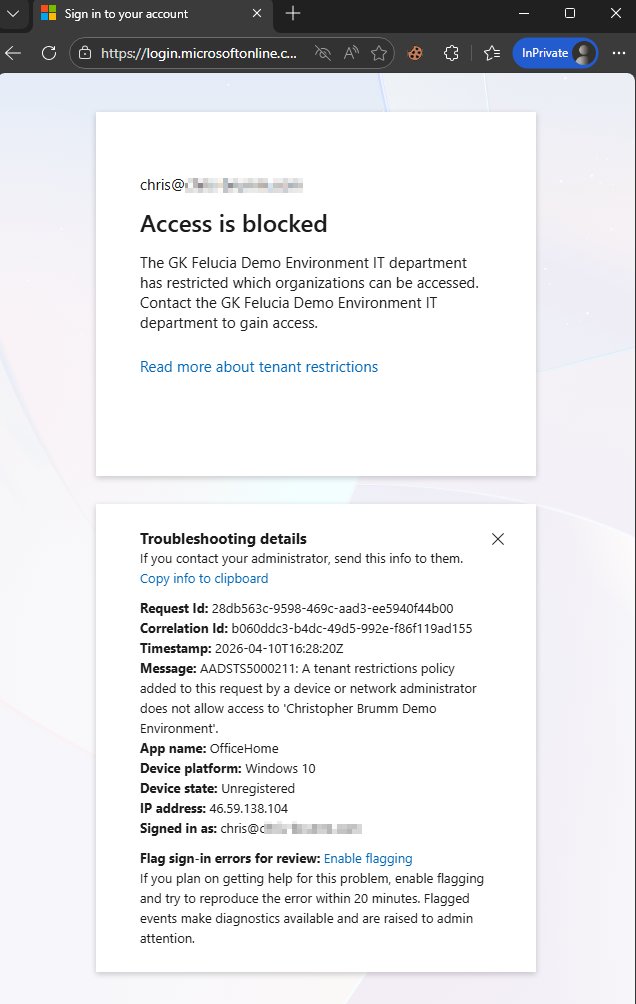 |
|---|
| User-facing block page showing AADSTS5000211 with tenant name and contact instructions |
Unfortunately, the GSA NetworkAccessTraffic logs do not surface blocked TR events either – meaning there is currently no straightforward way to see which sign-in attempts are being blocked after enforcement is active. This is a real limitation of Universal TR compared to the TRv1 proxy approach, where blocked sign-ins appeared in a dedicated Tenant Restrictions report in Entra ID (available under Overview → Tenant restrictions) when the Restrict-Access-Context header was configured with your own tenant ID.
💡 This makes the pre-flight analysis described above all the more important – understanding the traffic landscape before enabling enforcement is the main tool available for impact assessment.
The following demo shows the client-side experience of Universal Tenant Restrictions in action. The first part shows a guest access attempt being blocked – the user tries to accept an invitation from an unauthorized tenant using their corporate identity, and the outbound Cross-Tenant Access policy blocks it. The second part shows Universal TR itself: the user attempts to sign in to an external tenant that is not on the allowlist, and the GSA client enforces the block before the authentication completes.
Enforcement without the GSA client
Universal Tenant Restrictions via the GSA client is the recommended approach for modern environments, but it is not the only option. The TRv2 policy supports two additional enforcement mechanisms for scenarios where the GSA client is not deployed:
Corporate proxy – configure the proxy to inject the sec-Restrict-Tenant-Access-Policy header on all traffic to Microsoft Entra ID and Microsoft accounts. This provides authentication plane protection only, and requires TLS inspection on the Microsoft login endpoints.
Windows GPO – enforce tenant restrictions directly on managed Windows devices via Group Policy. This provides both authentication and data plane protection without requiring a proxy, but is limited to Windows devices and Microsoft Edge for browser traffic.
For details on configuring these options, see the Microsoft documentation on setting up tenant restrictions v2.
What’s next
The next post in this series covers coexistence with other Secure Web Gateways – including the source IP mismatch issue and how GSA resolves it.
Attribution and References
References for the series are here